Knowing how to get information about a command is so important and very useful if we are working in the terminal.
Most command have a --help option which print a description and short message about how to run the command.
~$ command_name --helpFor example if we want to know how to get information about $ cd we can use :
~$ cd --helpAnother way to get information about a command is by using the $ man command. Man or Manual page is like a --help command. But it give more information than --help gives. The information that given were :
- Name of the command
- Synopis about how to use the command
- Description about the command
- The author of the manual pages
- Link for reporting bugs
- Copyright of the page
- Extra information
~$ man command_nameFor example if we want to know how to get information about ls we can use :
~$ man lsBeside that there are a command that can help you if you forget about a command but you remember a few keyword that related to the command. The command is $ apropos.
~$ apropos keyFor example if we forget about command $ whatis and we only remember 'what', then we can use this command :
~$ apropos whatIt'll show you the related command(s) with key 'what' and a short description of each command(s).\
And if you just want to know about the description about a command, you can use $ whatis. It will shows the description of a command only.
~$ whatis command_nameFor example if we want to know about ls, then we can use this command :
~$ whatis lsIf we working in terminal and we forget about where we are in the directory, we can use pwd command. This command will tell you where you are in the terminal.
~$ pwdIf you open your terminal for the first time (and you didn't change the default directory before) and you run $ pwd it will show /home/host_name. For example if i run in my computer it will show
~$ pwd
/home/skyfallIf you want to know list of file or directory in a directory you can use $ ls.
~$ lsTips you can add useful option in ls command,such as :
$ ls -a
It is an option to show everything in the directory including a hidden file$ ls -l
It is an option to show long listing format of information about general file or folder including :
- Permission
- Owner
- Group
- Size
- Date and etc
If you need to go from a directory to other directory, you can use $ cd command. It's a command to change the working directory.
~$ cdFor example if i was in /home directory and i want to go to /Downloads directory. Next of /home directory, there are a directory called 'skyfall' . So i need to go to skyfall directory and then i go to downloads directory. Here's the implementation :
/home$ cd skyfall
~$ cd Downloads
~/Downloads$
or i can use
/home$ cd skyfall/Downloads
~/Donwloads$
the result will be the same. It's up to you, but i suggest you if you don't know about where is your the location of your destination directory,you do it one-by-one like in the first example.
Otherwise,if you want to go to higher directory you can use $ cd .. command.
Command for make directori(es) is $ mkdir
$ mkdir dir_namemake 3 directories(ex : dir1,dir2,dir3) in single command :
$ mkdir dir1 dir2 dir3- Command for remove file(s) is
$ rm
$ rm file_nameRemove 2 files(ex : file1 and file2) in single command :
$ rm file1 file2- Command for remove directori(es) is
$ rmdir. Only works for empty directory.
$ rmdir dir_nameRemove 2 empty directories (ex : dir1 and dir2) in single command :
$ rmdir dir1 dir2- Command for remove non-empty and empty directori(es) is
$ rm -r.
$ rm -r dir_nameRemove 2 non-empty/empty directories (ex : dir1 and dir2) in single command :
$ rm -r dir1 dir2- Command for force remove file(s) without confirmation is
$ rm -f
$ rm -f file_nameForce remove 2 files (ex : file1 and file2) without any confirmation in single command :
$ rm -f file1 file2- Command for force remove directori(es) without confirmation is
$ rm -rf
$ rm -rf dir_nameForce remove 2 directories (ex : dir1 and dir2) without any confirmation in single command :
$ rm -rf dir1 dir2- Command for copy file(s) is
$ cp.
$ cp file_name destinationCopying 3 file (ex : file1,file2,file3) from /Documents directory to /home.
~/Document$ cp {file1,file2,file3} ~If you want to copy many file with the same prefix but different ending (ex : file1-file 10). You can do :
~/Document$ cp file{1..10} ~- Command for copy directori(es) is
$ cp -r
$ cp -r dir_name destinationCopying 2 directories (ex : dir1,dir2) from /home directory to /Documents.
~$ cp dir{1,2} ~/DocumentsMove and renaming file(s) or directori(es) can be done with $ mv
- Rename:
$ mv oldfile newfile- moving :
$ mv file dir_name- Rename a file (file1 to file2) :
$ mv file1 file2- Rename a directory (dir1 to dir2) :
$ mv dir1 dir2- move a file to directory (file 1 from ~ to /Documents) :
$ mv file1 ~/Documents$ touch file_name- Make 10 file (file1 - file10) with same prefix different ending :
$ touch file{1..10}- update the modification time, we can update file/folder using this format :
$ touch existing_If you want to read the content of the file you can use $ cat command.
$ cat file_nameThere are a few other options that would be useful. That is $ cat > file_name and $ cat >> file_name. This two option is used for add content of the file. The different is if you use '>' you will delete the content and rewrite it with your input. If you use '>>' your input will be added in the last of the content.
There are two option for browse through a file. There are $ more and $ less. $ more is a file perusal filter for CRT viewing.$ less is the opposite of $ more.
More :
$ more file_nameLess :
$ less file_name$ head file_name$ tail file_nameWe can use $ file for detect file type using file header.
$ file file_nameIf we want to print all string (printable) we can use $ strings
$ strings file_nameWe can use $ grep if we want to search a pattern in a file.
$ grep pattern file_nameIt will show the content of the file that have the same pattern like your input pattern.
We can use $ grep -r if we want to search a pattern in a directory. It will search pattern in all file(s) inside the directory.
$ grep -r pattern dir_nameIf we don't know or forget about where is a file or a directory we can use $ locate command.
$ locate file_or_dir_name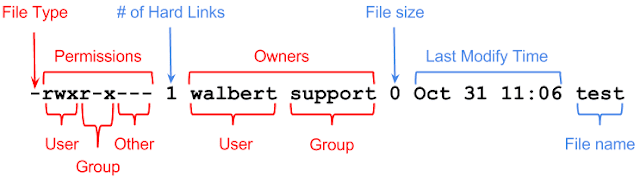
There are 3 type of file permission (rwx) :
| Permission | Description | Num |
|---|---|---|
| Read | Read the content | 4 |
| Write | Change the content (add,edit,delete) | 2 |
| Execute | Run the file/script | 1 |
So, if we want to change file permission we can use the sum of permission number :
| Permission | Symbol | Number |
|---|---|---|
| Read, Write, Execute | rwx | 7 |
| Read, Write | rw- | 6 |
| Read, Execute | r-x | 5 |
| Read only | r-- | 4 |
| Write, Execute | -rx | 3 |
| Write only | -w- | 2 |
| Execute Only | --x | 1 |
| Nothing | --- | 0 |
We can change the permission using $ chmod
- Change file permission by number
$ chmod xxx file_name'xxx' should be change with the sum of the number of file permission. first x is for user, second x is for group and third x is for everyone.
- Change file permission by letter (the change will be added for user,group and everyone)
$ chmod +z file_name'z' should be changed with 'r' or 'w' or 'x' or both or all of them.
- Image source :
- Content source :