- Project Lingo
- Keyboard Shortcuts
- Anatomy of the Xcode Editor
- Build Settings
- Add Files to Project
- Sources
- Workspace
- contains one or more projects.
- Xcode 4 introduced the workspace, which is a sibling relationship, meaning that any project can reference projects in the same workspace.
- Project
- a collection of files that can be compiled and used to build a target.
- Xcode 3 introduced the subproject, which is a parent-child relationship, e.g. the parent can reference its child target, but not vice versa.
- Target
- A build target is a file created from source files. The build command compiles all needed source files, and possibly links them with some other files, like libraries, in order to create the target.
- Each target also defines a list of classes, resources, custom scripts etc to include/ use when building.
- A project may have multiple targets. For example, most projects have a Test target.
- Scheme
- in a scheme, you can define what happens for each build action, e.g. Build, Run, Test. Often the same target will be used for multiple schemes.
- having multiple, iterative environments with their own endpoints is one common use for a scheme.
Xcode, while wonderful, does not have the most intuitive controls for some of its most important functions. Learning these hotkeys will save you a lot of time, and probably a few tears.
- Open a new tab:
cmd + T - Jump to a line #:
cmd + L - Open a specific file:
cmd + shift + O - Build:
cmd + B - Build + Run:
cmd + R - Quick documentation:
option + clickon a function/method - Find text:
cmd + F - Find text in project:
cmd + shift + F - Clean project: s
cmd + shift + K - Auto-format file:
ctrl + I
- Show/Hide Navigator: ⌘0 (Command + 0)
- Show/Hide Debug Area: ⇧⌘Y (Shift + Command + Y)
- Show/Hide Utilities: ⌥⌘0 (Option + Command + 0)

Left to right:
- Play (build and run,
cmd + R) - Stop current process
- Scheme + simulator
- Progress Bar
- Standard/Assistant/Version editor toggle
- the version editor is useful for comparing changes made inline
- the assistant editor is awkward and annoying
- Navigator/Debug/Utilities area toggle
Oh boy. Here goes:
- Project navigator (folder tree view)
- Source Control Navigator
- Symbol navigator (I have never used this)
- Search navigator
- find/replace
- text, call hierarchy, regex, etc.
- containing/matching/starting/ending
- matching/ignoring case
- search scope
- Issue navigator
- NOTE: Use the STOP toggle in the bottom filter to show errors only- very useful for sifting through many warnings!
- Test navigator
- Filter failed tests, much like the issue navigator
- Debug navigator (never used this either, but useful with threads)
- Breakpoint navigator
- Filter enabled breakpoints
- Report navigator
- View code coverage, logs

Note the Variable view/console view toggle in the bottom right
- Disable/enable all breakpoints
- Play (continue)
- Step over
- Step in
- Step out (e.g. when stuck in assembly code)
- File details
- Central part of using the storyboard
- Related items
- recent files, super/subclasses, callers/callees, etc.
- Forward/back navigation
- forward/back issue navigation
- Right-click on a function/method
- Refactor (rename)
- Find call hierarchy
- Jump to definition
- Reveal in project navigator
- Show in Finder
- Quick documentation:
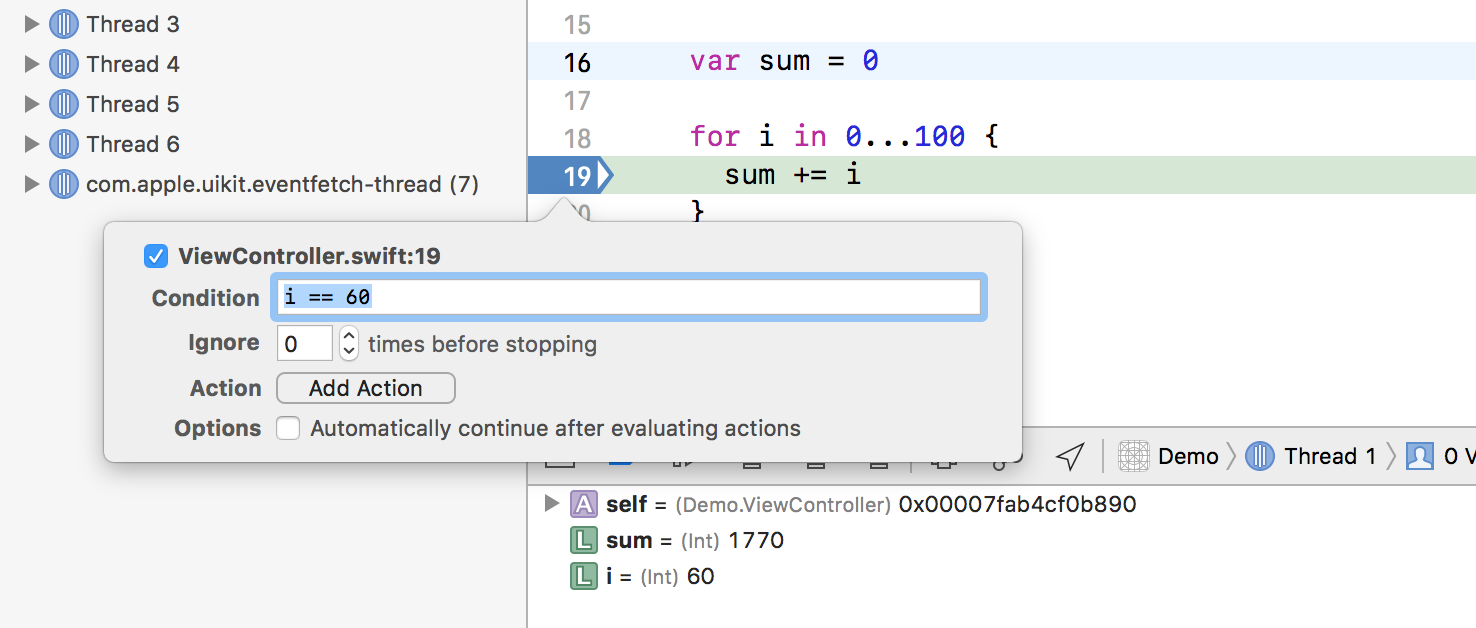
option + clickon a function/method - Smart breakpoints
- Break only on condition
- trigger console actions, e.g.
print
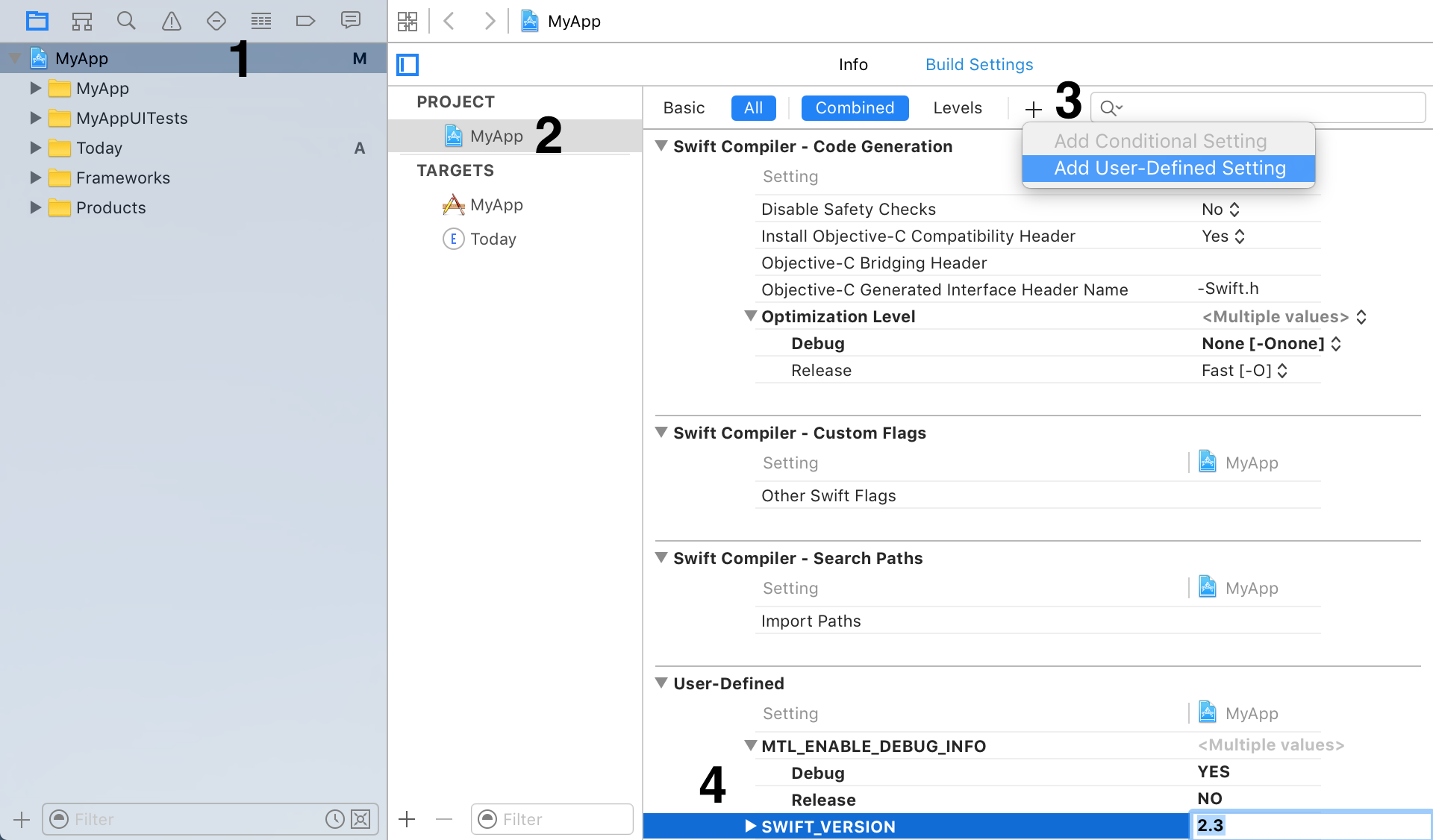
Many a stackoverflow page will suggest tweaking your Build Settings, but it can be hard to remember how to get to those settings. Here's how:
Go to the directory view of the navigation sidebar and click on the project folder icon.
NOTE: There are separate build settings for the Project and its Targets- usually you want the target. Be sure to check out both!
When adding new files by choosing a template, it will automatically get added to the target's Copy Bundle Resources.
When adding existing files or images from Finder, be sure to check "create groups" and add to the main target.
