In this guide, we will cover the basics of Android development, using Kotlin, Google's preferred language for Android mobile development since 2019, and Jetpack Compose, Android's modern UI toolkit.
We will assume a basic working knowledge of Kotlin, and general object-oriented programming (OOP) concepts, but if you need some further guidance on this, don't worry! The official Kotlin documentation is a very useful tool.
To follow along, you'll probably also want to download Android Studio, the official IDE for Android app development. Use the detailed installation instructions for Windows, macOS, and Linux on the Android Developers website.
- Android Development with Kotlin
- Table of Contents
- An IC Hack Greeting App
- An IC Hack Countdown Timer
- Connecting to a Backend API
- Project Set-up
- Understanding the API
- Step 1: Define the data model
- Step 2: Create the HTTP client
- Step 3: Create a basic PostsScreen
- Step 4: Add state for the posts
- Step 5: Fetch the data
- Step 6: Show different UI based on state
- Step 7: Display posts in a LazyColumn
- Step 8: Create a PostCard composable
- Step 9: Wire it all together
- Taking it further
- Building your own backend
- Next Steps
For our first demo, we'll build a simple app that allows us to greet IC Hack attendees!
It'll display a simple "Welcome to IC Hack!" message with a customisable tagline.
Follow the instructions below to initialise the empty project we'll be able to build off:
- Open Android Studio.
- Create a new Empty Activity and name it how you like (I personally named my app 'Welcome to IC Hack'). An Activity represents a single screen in your app — we're creating an empty one to build from scratch.
- You can leave the other settings (Minimum SDK, Build configuration language) as the default.
- Once Android Studio has created and built your project, you should be able to click the green
▶️ Run button next to 'app' in the top toolbar. Your app should display as follows:

Warning
Having trouble? If Gradle sync fails or you see "No devices available", grab one of the mentors — they'll help you get set up!
The Android emulator works great, but you can also run your app directly on your phone! This is often faster and lets you test real-world features like the camera or sensors.
First, you need to unlock Developer Options on your Android device:
- Open Settings on your phone
- Go to About phone (sometimes under System)
- Find Build number and tap it 7 times — you'll see a toast message saying "You are now a developer!"
- Go back to Settings — you should now see Developer options
- Open Developer options
- Find USB debugging and turn it on
- Confirm the warning dialog
- Plug your phone into your laptop with a USB cable
- Your phone will show a prompt: "Allow USB debugging?" — tap Allow (you can tick "Always allow from this computer" for convenience)
- In Android Studio, click the device dropdown next to the Run button — your phone should appear in the list
- Select your phone and click Run!
Tip
If your phone doesn't appear, try a different USB cable (some cables are charge-only), or check that you've accepted the debugging prompt on your phone.
When something goes wrong, Logcat is your best friend. It shows all the log messages from your app (and the system) in real-time.
To open Logcat, click View → Tool Windows → Logcat (or press Alt+6).
You can add your own log messages in code:
import android.util.Log

Log.d("MyApp", "Button was clicked!")  // Debug message
Log.e("MyApp", "Something went wrong: $error")  // Error message
Filter by your app's package name or search for your tag (like "MyApp") to find your messages among the noise.
Before we start making changes, let's understand what Android Studio created for us in MainActivity.kt:
MainActivityis the entry point of your app — it's the Activity that runs when your app launchesonCreate()is called when the Activity starts; think of it as your starting pointsetContent { }is where we define our UI using ComposeWelcomeToICHackTheme { }wraps our content in a consistent theme (colours, typography, etc.)Surfaceis a container that applies the theme's background colour
Now let's talk about composable functions, the building blocks of your UI.
These are the basic building block of a UI in Jetpack Compose.
A composable function describes some part of your UI and is otherwise like any regular function in Kotlin, except for the fact that it doesn't return anything. Instead, it takes some input (its function parameters) and generates what's shown on the screen.
Composable functions are identified by the @Composable annotation before the function declaration. It informs the Compose compiler that this function is intended to convert data into UI.
Take a look at the MainActivity.kt file in our generated project.
You should see two composable functions at the bottom: Greeting() and GreetingPreview().
Both of these represent UI elements within our app, as desired: Greeting() encompasses a simple text box that displays a basic message, and GreetingPreview() uses the extra @Preview annotation to display this text box within a preview window in our IDE (which can be opened from the Split or Design views in the top-right).
Try toggling the showBackground = true parameter of the Preview annotation. You could even add showSystemUI and name parameters to customise your preview further.
Before we dive into the code further, we need to learn about a few more Compose concepts.
So far, we've seen Text() — a composable that displays text on screen. But what if we want to display multiple pieces of text? And control how they're arranged?
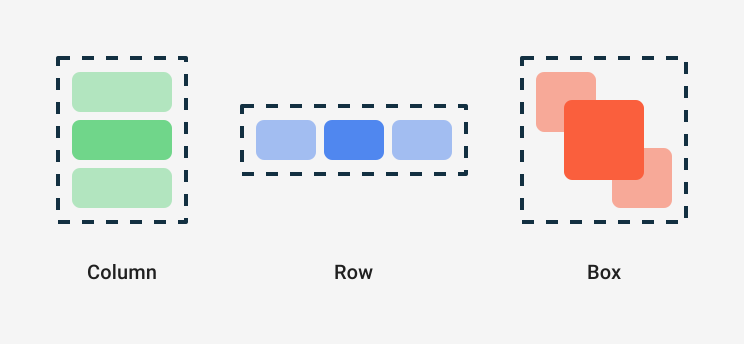
This is where layout composables come in. These are special composables that don't display content themselves, but instead control how their children (the composables inside them) are positioned.
The three most common layout composables are:
Column: arranges children vertically (stacked top to bottom)Row: arranges children horizontally (side by side)Box: stacks children on top of each other (like layers)
You can see these three layouts illustrated below.
For our greeting card, we want a main message at the top and a "from" line below it. This is a perfect use case for Column!
When specifying sizes in Compose, we use special units that adapt to different screen densities:
dp(density-independent pixels) — used for spacing, padding, and layout dimensions. A button that's48.dpwide will appear roughly the same physical size on any device.sp(scalable pixels) — used specifically for text sizes. These respect the user's font size preferences in their device settings, making your app more accessible.
You may have noticed that Greeting() has a modifier parameter. Modifiers are how we style and position composables in Jetpack Compose — think of them as a chain of instructions that describe how a composable should look and behave.
Modifiers can be chained together:
Modifier
    .padding(16.dp)       // Add space around the element
    .fillMaxWidth()       // Make it as wide as its parent
    .align(Alignment.End) // Position it to the right
Each modifier in the chain is applied in order, which can affect the result — for example, adding padding before a background colour gives a different effect than adding it after.
Now we're ready to update our code! We'll make these changes step by step.
Tip
Android Studio should prompt you to add imports automatically as you type (just press Alt+Enter when you see a red underline).
Find your Greeting() function. Currently it just contains a single Text composable. Wrap that Text inside a Column { } block:
Column {
    Text(
        text = "Hello $name!",
        modifier = modifier
    )
}
Remember, Column arranges its children vertically — so anything we add inside will stack top to bottom.
Inside your Column, after the first Text, add another Text composable. This one will display who the greeting is from. What text should it show? What parameters might you pass to it?
Try it yourself first, then check the example project if you get stuck!
Currently Greeting() takes a name parameter, but now we want to display two different pieces of text: a message and a "from" line.
Update the function signature to take message: String and from: String instead of name: String. Then update your two Text composables to use these new parameters.
Plain text works, but let's make it look more like a greeting card! Try adding these parameters to your Text composables:
fontSize— how large should your text be? Try something like72.spfor the main message and36.spfor the "from" linelineHeight— controls spacing when text wraps. Try90.spfor the main messagetextAlign— tryTextAlign.Centerfor centred text
For the "from" text, can you use Modifier.padding() and Modifier.align() to add some spacing and push it to the right side?
Now that Greeting() has different parameters, you'll see errors where it's called. Update the call in onCreate() and in GreetingPreview() to pass your new message and from arguments.
What message do you want to display? Don't forget to add your own name!
Click Run app again in the top toolbar. You should now see your personalised IC Hack greeting displayed on screen!
Mine looks like this:

Tip
Stuck? The complete example is available in the welcome-to-ic-hack directory. Compare your code to MainActivity.kt if you need a hint!
For our second demo, we'll build a countdown timer that shows how long until IC Hack begins! This will introduce some more advanced concepts: state management, coroutines, and interactive UI with buttons.
Create a new Empty Activity project in Android Studio, just like before. I've named mine 'IC Hack Countdown'.
So far, our greeting app has been entirely static — it displays the same thing every time. But a countdown timer needs to change over time. How do we make our UI update?
This is where state comes in.
State is any data that can change during the lifetime of your app. When state changes, Compose automatically recomposes (re-runs) the composables that use that state, updating the UI.
To create state in Compose, we use remember and mutableStateOf:
var count by remember { mutableStateOf(0) }Let's break this down:
mutableStateOf(0)creates a state holder with an initial value of0remember { }tells Compose to keep this value across recompositions (otherwise it would reset to0every time!)byis Kotlin's property delegation — it lets us read and writecountdirectly instead of using.value
When you update count, any composable that reads it will automatically re-run with the new value. This is the core of Compose's reactive model!
Let's start by creating a CountdownTimer composable. For now, we'll just display a title and a static time value:
@Composable
fun CountdownTimer(modifier: Modifier = Modifier) {
    var timeRemaining by remember { mutableStateOf(86400000L) } // 24 hours in milliseconds

    Column(
        horizontalAlignment = Alignment.CenterHorizontally,
        verticalArrangement = Arrangement.Center,
        modifier = modifier
            .fillMaxSize()
            .padding(24.dp)
    ) {
        Text(
            text = "IC Hack 2025\nTime until submission",
            textAlign = TextAlign.Center,
            fontSize = 24.sp,
            lineHeight = 36.sp,
            color = MaterialTheme.colorScheme.primary
        )

        Spacer(modifier = Modifier.height(8.dp))

        Text(
            text = formatTime(timeRemaining),
            fontSize = 48.sp,
            lineHeight = 56.sp,
            textAlign = TextAlign.Center
        )
    }
}
We're storing timeRemaining as a Long representing milliseconds. The title uses MaterialTheme.colorScheme.primary to pick up the theme's accent colour. We'll write the formatTime() helper function shortly.
Don't forget to update onCreate() to use your new CountdownTimer composable instead of Greeting!
Right now our timer just sits there. We need it to tick down every second!
Coroutines are Kotlin's way of writing asynchronous code — code that can pause and resume without blocking the main thread. In Compose, we use LaunchedEffect to run a coroutine when a composable enters the screen.
Add this inside your CountdownTimer, before the Column:
LaunchedEffect(Unit) {
    while (timeRemaining > 0) {
        delay(1000L) // Wait 1 second
        timeRemaining -= 1000L
    }
}
Here's what's happening:
LaunchedEffect(Unit)starts a coroutine when the composable first appears. TheUnitkey means it only runs once.delay(1000L)pauses the coroutine for 1 second — without blocking the UI threadtimeRemaining -= 1000Ldecreases the time, which triggers a recomposition
If you run your app now, you should see the time counting down!
We need a helper function to convert milliseconds into a readable format. Add this outside your composable (it's a regular function, not a composable):
fun formatTime(millis: Long, detailed: Boolean = true): String {
    val totalSeconds = millis / 1000
    val days = totalSeconds / 86400
    val hours = (totalSeconds % 86400) / 3600
    val minutes = (totalSeconds % 3600) / 60
    val seconds = totalSeconds % 60

    return if (detailed) {
        buildString {
            if (days > 0) append("$days days, ")
            if (hours > 0 || days > 0) append("$hours hours, ")
            append("$minutes minutes, $seconds seconds")
        }
    } else {
        String.format("%02d:%02d:%02d", hours + days * 24, minutes, seconds)
    }
}
This function supports two formats:
- Detailed: "2 days, 5 hours, 23 minutes, 47 seconds"
- Compact: "53:23:47"
We're passing a detailed parameter so we can toggle between them, but how can we actually introduce that toggling mechanism?
Let's add a button that switches between the detailed and compact formats.
First, add another piece of state to track the current format:
var isDetailedFormat by remember { mutableStateOf(true) }Then update your countdown Text to use this state:
Text(
    text = formatTime(timeRemaining, isDetailedFormat),
    fontSize = if (isDetailedFormat) 32.sp else 48.sp,
    lineHeight = if (isDetailedFormat) 44.sp else 56.sp,
    textAlign = TextAlign.Center
)
We adjust both fontSize and lineHeight based on the format — the detailed view needs more line spacing since it wraps across multiple lines.
Finally, add a Button below the text (but inside the Column):
Spacer(modifier = Modifier.height(24.dp))

Button(onClick = { isDetailedFormat = !isDetailedFormat }) {
    Text(if (isDetailedFormat) "Show compact" else "Show detailed")
}
The Spacer adds some breathing room between the countdown and the button.
The Button composable takes an onClick lambda — code that runs when the user taps it. Here, we're toggling isDetailedFormat between true and false.
Instead of a hardcoded duration, let's count down to an actual date. Update your state initialisation:
// IC Hack 2025 submission time
val targetTime = 1769947200000L // February 1st, 12:00PM UTC

var timeRemaining by remember {
    mutableStateOf((targetTime - System.currentTimeMillis()).coerceAtLeast(0))
}
And update your LaunchedEffect to recalculate based on the current time:
LaunchedEffect(Unit) {
    while (timeRemaining > 0) {
        delay(1000L)
        timeRemaining = (targetTime - System.currentTimeMillis()).coerceAtLeast(0)
    }
}
The .coerceAtLeast(0) ensures we don't go negative if the target time has passed.
What happens when the countdown reaches zero? Let's show a celebration message!
Update your countdown Text to handle this case:
Text(
    text = if (timeRemaining > 0) {
        formatTime(timeRemaining, isDetailedFormat)
    } else {
        "🎉 IC Hack submission is closed!"
    },
    fontSize = if (timeRemaining <= 0 && isDetailedFormat) 32.sp else 48.sp,
    lineHeight = if (timeRemaining <= 0 && isDetailedFormat) 44.sp else 56.sp,
    textAlign = TextAlign.Center
)
The celebration message gets the smaller font size when detailed format is on, keeping it nicely contained.
You could also hide the format toggle button when the countdown is complete. Give this a try yourself!
Click Run app and you should see a live countdown with a working format toggle button.
Mine looks like this:

Tip
Stuck? The complete example is available in the ic-hack-countdown directory.
Most hackathon projects need to fetch data from the internet. Let's build a third app that displays posts from an API — this will teach you how to make network requests, handle loading states, and display dynamic lists in Compose.
We'll use JSONPlaceholder, a free fake REST API that's perfect for prototyping. It provides endpoints like /posts, /users, and /comments with realistic sample data — no authentication or setup required!
Create a new Empty Activity project in Android Studio. I've named mine 'IC Hack Posts'.
We need to add two libraries to our project:
- Ktor Client — A Kotlin-first HTTP client from JetBrains
- kotlinx.serialization — For parsing JSON into Kotlin data classes
Open your module-level build.gradle.kts (the one inside the app folder) and add these dependencies inside the dependencies { } block:
// Ktor Client
implementation("io.ktor:ktor-client-android:2.3.7")
implementation("io.ktor:ktor-client-content-negotiation:2.3.7")
implementation("io.ktor:ktor-serialization-kotlinx-json:2.3.7")

// Serialization
implementation("org.jetbrains.kotlinx:kotlinx-serialization-json:1.6.2")
Also add the serialization plugin at the top of the same file, inside plugins { }:
id("org.jetbrains.kotlin.plugin.serialization") version "1.9.21"Click Sync Now when Android Studio prompts you.
Your app needs permission to access the internet. Open AndroidManifest.xml (in app/src/main) and add this line inside the <manifest> tag, before <application>:
<uses-permission android:name="android.permission.INTERNET" />Before we write any code, let's understand what we're working with. Open your browser and visit https://jsonplaceholder.typicode.com/posts.
You'll see a JSON array containing 100 posts. Each post looks like this:
{
    "userId": 1,
    "id": 1,
    "title": "sunt aut facere repellat provident...",
    "body": "quia et suscipit\nsuscipit recusandae..."
}
Our goal is to fetch this data and display it in a scrollable list. We'll build this up piece by piece.
To work with this JSON in Kotlin, we need a data class that matches its structure. Add this above your MainActivity class:
@Serializable
data class Post(
    val id: Int,
    val userId: Int,
    val title: String,
    val body: String
)
The @Serializable annotation tells kotlinx.serialization how to convert JSON to and from this class. You'll need to import it, so press Alt+Shift+Enter when you see the red underline.
Now we need an HTTP client to make requests. Add this below your Post class:
val client = HttpClient(Android) {
    install(ContentNegotiation) {
        json(Json {
            ignoreUnknownKeys = true
        })
    }
}
This creates a Ktor client configured to automatically parse JSON responses. The ignoreUnknownKeys = true option means your app won't crash if the API adds new fields later.
Android Studio will show red underlines for the missing imports. Press Alt+Shift+Enter on each one, or add these at the top of your file:
import io.ktor.client.*
import io.ktor.client.call.*
import io.ktor.client.engine.android.*
import io.ktor.client.plugins.contentnegotiation.*
import io.ktor.client.request.*
import io.ktor.serialization.kotlinx.json.*
import kotlinx.serialization.json.JsonLet's start with a simple composable that just shows a loading indicator. Create a new composable function:
@Composable
fun PostsScreen(modifier: Modifier = Modifier) {
    Box(
        modifier = modifier.fillMaxSize(),
        contentAlignment = Alignment.Center
    ) {
        CircularProgressIndicator()
    }
}
Update your onCreate() to use this new composable instead of the default Greeting. Run your app — you should see a spinning progress indicator in the centre of the screen.

Now let's add state to hold our posts once they're fetched. Think back to the countdown timer — what pieces of state do we need here?
We need to track:
- The list of posts (initially empty)
- Whether we're still loading
- Any error message (if something goes wrong)
Try adding these three state variables inside your PostsScreen, before the Box. What types should each one be?
Hint: State declarations
var posts by remember { mutableStateOf<List<Post>>(emptyList()) }
var isLoading by remember { mutableStateOf(true) }
var errorMessage by remember { mutableStateOf<String?>(null) }Remember how we used LaunchedEffect to start the countdown timer? We'll use the same pattern here to fetch data when the screen appears.
Add a LaunchedEffect block before the Box. Inside it, you'll need to:
- Make a GET request to
https://jsonplaceholder.typicode.com/posts - Store the result in your
postsstate - Set
isLoadingtofalse - Handle any exceptions by setting
errorMessage
The Ktor syntax for a GET request looks like this:
val result: List<Post> = client.get("https://...").body()Try implementing the LaunchedEffect yourself, using a try/catch block to handle errors.
Hint: LaunchedEffect implementation
LaunchedEffect(Unit) {
    try {
        posts = client.get("https://jsonplaceholder.typicode.com/posts").body()
        isLoading = false
    } catch (e: Exception) {
        errorMessage = "Failed to load posts: ${e.message}"
        isLoading = false
    }
}Right now we always show the loading spinner. Update your Box content to show different UI depending on the state:
- If
isLoadingis true → showCircularProgressIndicator() - If
errorMessageis not null → show the error in aTextcomposable - Otherwise → show the posts (we'll build this next)
A when expression works well here. For now, just display Text("Loaded ${posts.size} posts") in the success case — we'll make it prettier shortly.
Run your app. After a brief loading spinner, you should see "Loaded 100 posts"!

Now for the fun part: displaying the actual posts. LazyColumn is Compose's scrollable list component. Unlike a regular Column, it only renders the items currently visible on screen, making it efficient for long lists.
Create a new composable to display the list:
@Composable
fun PostsList(posts: List<Post>) {
    LazyColumn(
        contentPadding = PaddingValues(16.dp),
        verticalArrangement = Arrangement.spacedBy(12.dp)
    ) {
        items(posts) { post ->
            // We'll create PostCard next
            Text(post.title)
        }
    }
}
Update your PostsScreen to call PostsList(posts = posts) in the success case.
Run the app. You should see a list of post titles! Try scrolling through them.

Note
In the Android emulator, there's no visible scrollbar. Just click and drag anywhere on the list to scroll, like you would on a real phone.
Plain text works, but let's make each post look like a proper card. Create a PostCard composable that takes a single Post and displays it nicely.
Think about what you want to show:
- The post title (prominent, maybe 2 lines max)
- The post body (smaller, maybe 3 lines max)
- Some metadata like "Post #1 by User 1"
Try using:
CardwithCardDefaults.cardElevation()for a nice shadow effectMaterialTheme.typography.titleMediumandbodyMediumfor text stylesTextOverflow.EllipsiswithmaxLinesto truncate long textSpacerfor spacing between elements
Build this yourself, then check the example project implementation if you need guidance!
Update your PostsList to use PostCard(post = post) instead of the plain Text.
Run your app one final time. You should see:
- A loading spinner briefly
- A scrollable list of nicely-formatted post cards
- If you turn off your internet and restart, an error message
Congratulations! You've built an app that fetches and displays data from a real API!

Tip
Stuck? The complete example is available in the ic-hack-posts directory. Compare your code to MainActivity.kt if you need a hint!
Here are some ideas to extend this example:
- Add pull-to-refresh using
PullToRefreshBoxfrom Material 3 - Navigate to a detail screen when a post is tapped (look into Compose Navigation)
- Add a search bar to filter posts by title
- Create a new post using
client.post()— JSONPlaceholder accepts POST requests and returns the created object (though it won't actually persist)
Want to connect to your own API instead? Check out the API Design HackPack which covers:
- Building REST APIs with FastAPI (Python)
- Serverless functions with Firebase Cloud Functions
- Best practices for API design at hackathons
The FastAPI example in that HackPack creates a /posts endpoint — you could run it locally and point your Android app at http://10.0.2.2:8000/posts (that's how the Android emulator reaches your host machine's localhost).
Congratulations — you've built three Android apps and learned the fundamentals of Jetpack Compose! Here are some directions you could explore next.
If you're working with a designer (or wearing that hat yourself), you'll want to translate visual designs into Compose code:
- Figma Dev Mode — Inspect designs and extract spacing, colours, and typography values to implement in Compose.
- Material Theme Builder — Create a custom colour scheme and export it as Compose theme code. This generates the
Color.kt,Theme.kt, andType.ktfiles for your project.
We only scratched the surface with LaunchedEffect and delay(). Kotlin Coroutines are a powerful tool for handling asynchronous operations:
suspendfunctions — Functions that can pause and resume, perfect for network calls or database operationsCoroutineScopeandviewModelScope— Managing coroutine lifecycles properlyFlow— Reactive streams of data that emit values over time (great for real-time updates)- Structured concurrency — Running multiple coroutines in parallel with
async/await
Resources:
For local data persistence, Android offers several options:
- Room — A SQLite abstraction that provides compile-time query verification and works seamlessly with coroutines and Flow
- DataStore — A modern replacement for SharedPreferences, great for storing user preferences
- Firebase — Cloud-hosted database (Firestore or Realtime Database) with real-time sync and offline support
- Android Basics with Compose — Google's free course covering everything from basics to advanced topics
- Jetpack Compose Samples — Official sample apps demonstrating various Compose patterns
- Now in Android — A fully-featured sample app showcasing modern Android development best practices
Good luck with your project!