- View
hpc-toolset-tutorial/coldfront/install.shto see how ColdFront is installed - View
hpc-toolset-tutorial/coldfront/local_settings.pyto see how ColdFront is configured - This is where you'd enable or disable any plugins and set variables for your local installation

NOTE: you can also install ColdFront using pip: https://pypi.org/project/coldfront/
- URL https://localhost:2443/
- You'll need to login as some of the users for this tutorial to get things started:
- Login locally as user
hpcadminpassword:ilovelinux - Logout
- Login locally as user
cgraypassword:test123 - Logout
- Login locally as
admin:admin - Go to Admin interface, Users
- Click on the hpcadmin user
- Make this user a 'superuser' by checking the boxes next to "Staff Status" and "Superuser Status" - SAVE
- Go to Admin interface, User Profiles
- Click on
cgraycheck"Is pi"SAVE - Go back to Admin interface, Click on Resources
- Add a resource:
cluster, cluster name=hpc, attribute: slurm_cluster=hpc - Logout
- Login locally as PI
cgray:test123 - Create a new project
- Request an allocation for resource: hpc
- Logout
- Login locally as
hpcadmin - Activate the allocation and set the appropriate allocation attributes:
slurm_account:cgray, slurm_specs:Fairshare=100, slurm_user_specs:Fairshare=parent

-
Login to the frontend container first, then to the coldfront container:
ssh -p 6222 hpcadmin@localhost
ssh coldfront
cd /srv/www
source venv/bin/activate
cd coldfront -
Let's see what slurm access cgray currently has:
sacctmgr show user cgray -s list -
Now dump the slurm account/association info from ColdFront's active allocations:
coldfront slurm_dump -c hpc -o ~/slurm_dump -
Let's see what was created:
ls -al ~/slurm_dump
cat ~/slurm_dump/hpc.cfg -
Load the slurm dump into slurm database:
sacctmgr load file=~/slurm_dump/hpc.cfg
Type 'Y'to add the new account & associations for cgray -
Let's look at cgray's slurm account again:
sacctmgr show user cgray -s list

ssh -p 6222 hpcadmin@localhost
- check slurm associations for cgray again: they should now show access to the hpc cluster
sacctmgr show user cgray -s list
su - cgray
sbatch --wrap "sleep 600"
squeue(the job should be running on a node)
sshto the allocated node
ps -ef |grep cgray
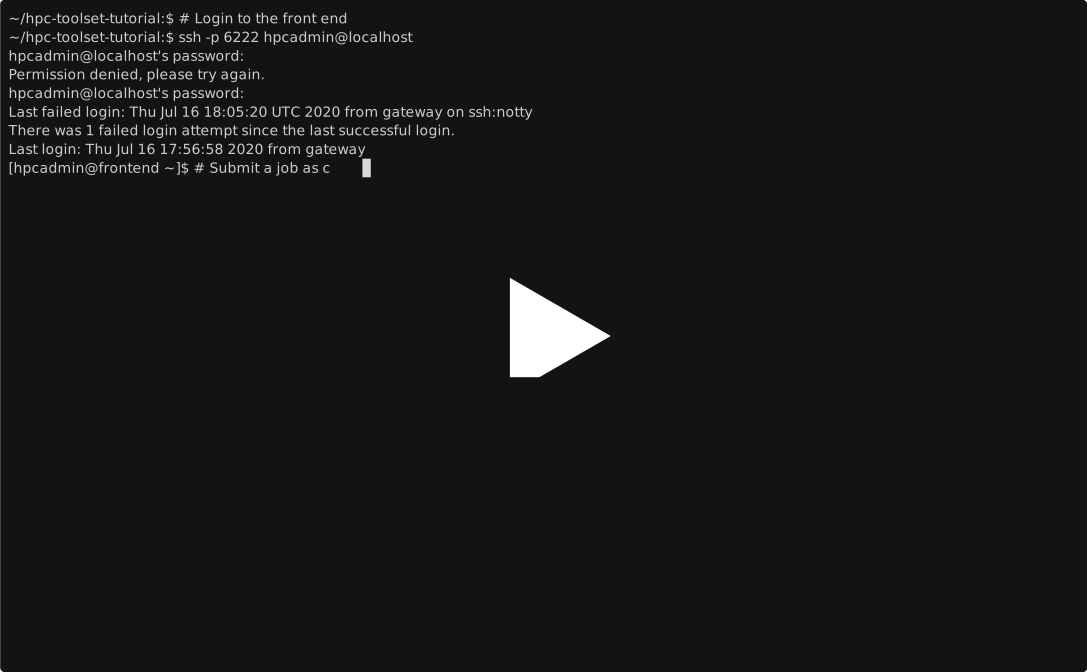
- Login to Open OnDemand as
cgray (test123)https://localhost:3443/ - Go to Active Jobs and click on your running job
- Delete (cancel) the job
- Submit a job using job template
- Launch an interactive Job

- Login to Open XDMoD https://localhost:4443/
-- Under the section "Sign in with tutorial:" Click on "Login Here" and entercgray:test123 - There is currently no data in XDMoD

ssh hpcadmin@xdmod- In order to see the job data just generated in slurm, we need to ingest the data into Open XDMoD and aggregate it. This is normally done once a day on a typical system but for the purposes of this demo, we have created a script that you can run now:
sudo -u xdmod /srv/xdmod/scripts/shred-ingest-aggregate-all.sh

Note: More information about this script in the Open XDMoD portion of this tutorial
- Login to Open XDMoD https://localhost:4443/
-- Under the section "Sign in with tutorial:" Click on "Login Here" and entercgray:test123 - You should see the data from the job you just ran
NOTE: There won't be much info except that we ran a few jobs. More will be presented in the XDMoD portion of the tutorial

- Login to ColdFront as local user
csimmons (ilovelinux)https://localhost:2443/
NOTE: You'll need to use a separate browser or incognito window as you'll already be logged in using the single sign on with XDMoD and OnDemand. - Notice there are no projects and no allocations. Logout
- Login locally as user
cgray (test123) - Click on project
- Click on Add User - search for
csimmons - Add to allocation
- Login to coldfront container and re-run slurm plug-in commands to add csimmons to slurm associations
ssh coldfront - Let's see what slurm access csimmons currently has:
sacctmgr show user csimmons -s list - Now dump the slurm account/association info from ColdFront's active allocations:
coldfront slurm_dump -c hpc -o /tmp/slurm_dump - Let's see what was created:
ls -al /tmp/slurm_dump
cat /tmp/slurm_dump/hpc.cfg - Load the slurm dump into slurm database:
sacctmgr load file=/tmp/slurm_dump/hpc.cfg
Type 'Y'to add the new association for csimmons - Let's look at csimmons's slurm account again:
sacctmgr show user csimmons -s list
Next - Open XDMoD
Previous Step - Accessing the Applications
Docker Tips
Back to Start