Originally seen as
config.xml+mapping.xmlpages from LGPT wiki years ago, reuploaded here since the wiki is down, and added some touchups:
- Command Line Example
config.xmlExample- Config Values
- Screen Size
- Auto-Load Last Project
- Screen Colors
- Key and Button Mapping
- Auto Repeat
- Path
- Rendering
- Volume
- Audio Configuration
- MIDI Configuration
- Log Dumping
mapping.xmlGuide- Mapping a Joystick
mapping.xmlExample- Checking Your Work
- Recovering X,Y to work on GP2X.
- MAC OSX mapping
- PSP key mapping
- GP2X key mapping
- Dingoo key mapping
- Caanoo key mapping
- Mapping a Midi Controller
LittleGPTracker can be configured in a various ways through a series of flags. These flags can either be defined temporarely at the command line or permanently in a config file called config.xml.
NOTE that values do not necessarily affect all platforms. Also, if one of the values isn't working for you it's possible that you need to get the latest ghetto build build.
You can specify any of the options at the command line using
./lgpt.exe -OPTION=VALUE
Example:
./lgpt.exe -FULLSCREEN=YES
This can be handy when trying out the effect of a flag before deciding to keep it permanently in the config.xml.
Create a new file config.xml and place it in the same folder as the platform executable you are using (ie. in Windows, it must be in the bin folder with the .exe; on the GP2X it should be in the root with lgpt.gpe, etc.). Open it in a text editor or xml editor. First create a root node like this:
<CONFIG>
</CONFIG>
Then you can add as many config flags in between as you like:
<CONFIG>
    <FLAGNAME value=' ' />
    <FOO value='BAR' />
</CONFIG>For [WIN/DEB/OSX]
To start LittleGPTracker in fullscreen:
<CONFIG>
    <FULLSCREEN value='YES' />
</CONFIG>
To have the screen bigger than the original GP2X resolution, use SCREEMULT to set a multiplier value:
<SCREENMULT value='2' />Be careful as large values take a lot of juice and interfere with sound playback.
By default, LittleGPTracker will automatically load the last project that was open on the previous session. To disable this behavior and show the project selection dialog instead, set:
<AUTO_LOAD_LAST value='NO' />To explicitly enable (default behavior):
<AUTO_LOAD_LAST value='YES' />LittleGPTracker uses 6 colours to do all the drawing. If you want, you can redefine them using the following parameters:
BACKGROUND: Color of the backgroundFOREGROUND: Color of the foregroundBORDER: Color of the border in the start screen / dialogsHICOLOR1: Row count in song screenHICOLOR2: Highlight color 2CURSORCOLOR: Cursor colorPLAYCOLOR: Play indicator colorMUTECOLOR: Mute indicator colorSONGVIEW_FE: Color of the chain "FE" in song screenSONGVIEW_00: Color of the chain "00" in song screenROWCOLOR1: Row count color 1ROWCOLOR2: Row count color 2MAJORBEAT: Color of "--" at row 00,04,08,0c in phrase screenALTROWNUMBER: How many rows for eachROWCOLOR
All colors are defined by a set of hexadecimal triplet for RGB. Here's an example:
<CONFIG>
    <BACKGROUND   value = "1D0A1F" />
    <FOREGROUND   value = "F5EBFF" /> <!-- Text and cursor in cursor -->
    <BORDER       value = "FF00DD" /> <!-- Dialog Border -->
    <HICOLOR1     value = "B750D1" /> <!-- Highlight color 1 -->
    <HICOLOR2     value = "DB33DB" /> <!-- Highlight color 2 -->
    <CURSORCOLOR  value = "FF00DD" /> <!-- Cursor color -->
    <PLAYCOLOR    value = "FF00DD" /> <!-- Play indicator color -->
    <MUTECOLOR    value = "FFFFFF" /> <!-- Mute indicator color -->
    <SONGVIEW_FE  value = "A55B8F" /> <!-- Color of the chain "FE" in song screen -->
    <SONGVIEW_00  value = "853B6F" /> <!-- Color of the chain "00" in song screen -->
    <ROWCOLOR1    value = "BA28F9" /> <!-- Row count color 1 -->
    <ROWCOLOR2    value = "FF00FF" /> <!-- Row count color 2 -->
    <ALTROWNUMBER value = "4" />      <!-- How many rows of each ROWCOLOR -->
</CONFIG>
You can generate this config values in an awesome web app
The buttons (GP2X/PSP) or keys (WIN/DEB/OSX) arrangment that is predefined can be totally reconfigured through the following parameters:
KEY_A: defines mapping for AKEY_B: defines mapping for BKEY_LEFT: defines mapping for left arrowKEY_RIGHT: defines mapping for right arrowKEY_UP: defines mapping for up arrowKEY_DOWN: defines mapping for down arrowKEY_LSHOULDER: defines mapping for left shoulderKEY_RSHOULDER: defines mapping for right shoulderKEY_START: defines mapping for start
To connect the button to a keyboard key, it's pretty easy: simply put the key name as defined by the SDL_KeySym SDL Keysym definitions as value. For example:
<CONFIG>
    <KEY_A value="f" />
    <KEY_B value="d" />
    <KEY_LEFT value="j" />
    <KEY_RIGHT value="l" />
    <KEY_UP value="i" />
    <KEY_DOWN value="k" />
    <KEY_LSHOULDER value="a" />
    <KEY_RSHOULDER value=";" />
    <KEY_START value="space" />
</CONFIG>
to connect or redefine the button arrangement of a GP2X or a PSP, you need to define it using the following syntax:
<KEY_START value="but:0:x" />where x is the button id of the button. The listing of button id's for PSP & GP2X can be found in mapping.xml Guide.
Here's an example that maps the start button to the X on PSP:
<CONFIG>
    <KEY_START value="but:0:11" />
</CONFIG>
And if you want to configure a USB joypad, you'll have to use the mapping.xml
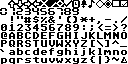
You can select one of the three fonts provided with this application.
Set the value of FONTTYPE in the config file to '0', '1', or '2' to apply the corresponding font.
<CONFIG>
    <FONTTYPE value='1' />
</CONFIG>To use a custom font, set the value of the FONTTYPE key to 'CUSTOM'
<CONFIG>
    <FONTTYPE value='CUSTOM' />
</CONFIG>
and place the custom_font.xml file in the same directory as the application.
The custom_font.xml file is generated by converting a BMP file containing font information using a dedicated web tool.
The source BMP file can be obtained from the link within the web tool or from here.
You can edit the BMP file using a general image editing software.
You can tweak the timing used to repeat the arrows keys and other.
KEYDELAYis the time (in msecs) you have to keep the key down before it starts repeating.KEYREPEATis the time in milliseconds between each repeat
<CONFIG>
    <KEYDELAY value="185" />
    <KEYREPEAT value="40" />
</CONFIG>You can tweak two different path:
ROOTFOLDER: defines where you want the root of all your project to be. This can be useful if you don't want to follow the original installation structure.SAMPLELIB: defines where sample library is located. For example, you may want to place the samplelibrary path at the root of your projects so you can grab samples from existing songs too. In that case, you can use an alias called “root:” representing the folder defined byROOTFOLDER.
<CONFIG>
    <ROOTFOLDER value="c:/files/tracks/" />
    <SAMPLELIB value="root:" />
</CONFIG>For [GP2X/Dingoo] only
It is used to set the volume of the hardware at startup. In decimal (base 10).
<CONFIG>
    <VOLUME value='60'/>
</CONFIG>These settings are used to control various options of the audio configuration. They are currenly mostly used for W32 but might extend in the future to other platforms:
AUDIOAPI: Allows to select the class of drivers to use. Currently can be set to ASIO to enable asio output instead of direct sound.AUDIODRIVER: Allows to specify which driver to open. It takes the first drvier whose name matches the beginning of the string. For example, to force using a realtek soundcard instead of the default one, you can just specify “Real”AUDIOBUFFERSIZE: Allows to tweak the default buffersize used for the audio. If the piggy glitches, increase this value.AUDIOPREBUFFERCOUNT: Even if the computer has the ability to run the piggy full screen, some sound hardware needs nearly instant reply for the couple of first buffers. If you have upped theAUDIOBUFFERSIZEbut still get glitches, try putting it back to something decent (like 512) and defineAUDIOPREBUFFERCOUNTto be 2,3,… that way, a set of blank buffer will be queued, ready for the soundcard to grab, before the sequencer is actually kicked in.
<CONFIG>
    <AUDIODRIVER value='Real' />
    <AUDIOBUFFERSIZE value='512' />
</CONFIG>For [WIN] only
It can be use to delay the output of midi by a certain amount of milliseconds. For example, to delay it of 1 msecs:
<CONFIG>
    <MIDIDELAY value='1' />
</CONFIG>
also note: Because MIDI on PC is a b*tch to synchronise and that the ONLY system that kind of worked was, surprisingly, the old MMSYSTEM audio system, I've re-enabled it as an option. So, if you need good midi sync or good timing, you will NEED to use this. The latency isn't great but in our case it's not a problem. To enable the old ass audio system and enjoy pretty stable midi out, add an entry in the config.xml with <AUDIOAPI value='MMSYSTEM' />
Get piggy dumping a log on the terminal or to a .log file, useful for debugging crashes or making a mapping.xml for your usb pad:
<CONFIG>
    <DUMPEVENT value='YES' />
</CONFIG>I realized people are getting confused with the mapping file so I'll try to make it a bit clearer.
First of all, the mapping file is NOT a replacement for key configuration in the config.xml file. If you want to change the default mapping of keys, use the config.xml. The mapping file is intended to augment/add control ON TOP of the existing basic configuration.
The idea here is to add control of the application through a joystick, making the original key combos from the config file still available.
I'm using this joystick:


Knobs are pretty easy do deal with on this one (since they are all numbered) but the joy axis are a little bit thougher since there's not indication for it. To get their 'ID', we are going to start the pig with a special option:
-DUMPEVENT=YES
Under Linux, specify it from the command line. Under Windows, you'll have to create a shortcut with the option on. Linux will dump the log in the terminal, while the latest version of the ghetto (as of today) creates it's log in a lgpt.log file, next to the executable.
With that option, the pig will log all event it receives, allowing identification of the various parts of the joystick. Let's first start the pig and press the 1/2/3/4 buttons. The log gives:
but(0):0
but(0):1
but(0):2
but(0):3
this means button from joystick 0 with ID 0,1,2,3 have been pressed, which is normal since the piggy uses numbers starting from zero while the joystick numbering starts at 1.
Let's press up/down on the 'flat' joystick control I'll use. The log gives:
joy(0)::1=-32768 <- up is negative
joy(0)::1=-257
joy(0)::1=32767 <- down is positive
joy(0)::1=-257
This means the axis 1 from joystick 0 has been moved, first negatively then positively(ignore the 257 stuff). So up is axis 1- and down is axis 1+. Doing the same with left/right, I'm getting left is axis 0- and right is axis 0+.
So now, we can use these information to build our mapping file. Since I'm using LSDJ type of mode (<INVERT value=“YES” /> in the config.xml), I want (according to the pics)
1: -> A
2: -> A
3: -> B
4: -> B
for the shoulders, I'll map both button coz I keep pressing randomly one or the other so
5:->L_Shoulder
7:->L_Shoulder
6:->R_Shoulder
8:->R_Shoulder
and for the axis:
0:+ -> right
0: -> left
1:+ -> down
1:- -> up
So now, we create a mapping.xml file to be located at the same level as the lgpt_XXX projects with
<MAPPINGS>
    <MAP src="joy:0:1-" dst="/event/up" />
    <MAP src="joy:0:1+" dst="/event/down" />
    <MAP src="joy:0:0-" dst="/event/left" />
    <MAP src="joy:0:0+" dst="/event/right" />
    <MAP src="but:0:0" dst="/event/a" />
    <MAP src="but:0:3" dst="/event/b" />
    <MAP src="but:0:1" dst="/event/a" />
    <MAP src="but:0:2" dst="/event/b" />
    <MAP src="but:0:5" dst="/event/rshoulder" />
    <MAP src="but:0:7" dst="/event/rshoulder" />
    <MAP src="but:0:4" dst="/event/lshoulder" />
    <MAP src="but:0:6" dst="/event/lshoulder" />
    <MAP src="but:0:8" dst="/event/start" />
    <MAP src="but:0:9" dst="/tempo/tap" />
</MAPPINGS>Starting the pig again, you should see in the log the following (according you didn't mistype or misplace the config file):
Attached /event/up to joy:0:1-
Attached /event/down to joy:0:1+
Attached /event/left to joy:0:0-
Attached /event/right to joy:0:0+
Attached /event/a to but:0:0
Attached /event/b to but:0:3
Attached /event/a to but:0:1
Attached /event/b to but:0:2
Attached /event/rshoulder to but:0:5
Attached /event/rshoulder to but:0:7
Attached /event/lshoulder to but:0:4
Attached /event/lshoulder to but:0:6
And you're all set !
Since last builds, only A and B are mapped be default and some of you might want to recover the previous behaviour where X & Y worked like A/B. On the GP2X, the button mapping is the following:
X=14
Y=15
so to map Y to B, and X to A (regular mode), use the following mapping.xml:
<MAPPINGS>
    <MAP src="but:0:14" dst="/event/a" />
    <MAP src="but:0:15" dst="/event/b" />
</MAPPINGS>
or use another configuration that suits you :)
- find values for usb buttons
open up the terminal
go wherever you downloaded piggy and on the command line type:
./LittleGPTracker.app/Contents/MacOS/LittleGPTracker -DUMPEVENT=YES
hit the buttons you want to use and copy the values piggy spits out
start but(0):9 lt but(0):4 rt but(0):5
up joy(0)::1=-32768 down joy(0)::1=32767 left oy(0)::1=-32768 right joy(0)::0=32767 run but(0):0 jump but(0):1
- make a mapping file
| button | value |
|---|---|
| SQUARE | but:0:3 |
| CROSS | but:0:2 |
| TRIANGLE | but:0:0 |
| CIRCLE | but:0:1 |
| START | but:0:11 |
| SELECT | but:0:10 |
| L_SHOULDER | but:0:4 |
| R_SHOULDER | but:0:5 |
| J_RIGHT | but:0:9 |
| J_LEFT | but:0:7 |
| J_DOWN | but:0:6 |
| J_UP | but:0:8 |
| button | value |
|---|---|
| A | but:0:12 |
| B | but:0:13 |
| START | but:0:8 |
| SELECT | but:0:9 |
| L_SHOULDER | but:0:10 |
| R_SHOULDER | but:0:11 |
| J_RIGHT | but:0:6 |
| J_LEFT | but:0:2 |
| J_DOWN | but:0:4 |
| J_UP | but:0:0 |
| J_STICK | but:0:18 |
| X | but:0:14 |
| Y | but:0:15 |
For those of you piggin' on the Dingoo, you've probably realized the Dingoo doesn't have dedicated volume controls. Below is the code for mapping the x and y buttons for volume up and down, respectively.
<MAPPINGS>
    <MAP src="key:0:space" dst="/mixer/volume/increase" />
    <MAP src="key:0:left shift" dst="/mixer/volume/decrease" />
</MAPPINGS>
If you'd like to map volume to other buttons or switch around anything else, here are is the full key mapping for the Dingoo:
| button | value |
|---|---|
| X | key:0:space |
| Y | key:0:left shift |
| A | key:0:left ctrl |
| B | key:0:left alt |
| START | key:0:return |
| SELECT | key:0:escape |
| L_SHOULDER | key:0:tab |
| R_SHOULDER | key:0:backspace |
| RIGHT | key:0:right |
| LEFT | key:0:left |
| UP | key:0:up |
| DOWN | key:0:down |
| button | value |
|---|---|
| A | but:0:0 |
| B | but:0:2 |
| HOME | but:0:6 |
| HOLD | but:0:7 |
| HELP1 | but:0:8 |
| HELP2 | but:0:9 |
| L_SHOULDER | but:0:4 |
| R_SHOULDER | but:0:5 |
| J_STICK | but:0:10 |
| X | but:0:1 |
| Y | but:0:3 |
TODO CLEAN UP THIS EMAIL DUMP
This is an experimental feature that should work on WIN, OSX, NIX, and RASPPI platforms.
You can specify the device to be mapped either from the command line:
./lgpt.rpi-exe -MIDICTRLDEVICE=Launchpad -DUMPEVENT=YES
When a CTRL device is selected, you can use your mapping file to add control as you would do with joysticks. I've tested (rather quickly) with midi CC and and notes and it seems to work as expected. Here's an example mapping file I used to trigger things from the lauchpad:
<MAPPINGS>
    <MAP src="midi:all:0:cc:104" dst="/event/up" />
    <MAP src="midi:all:0:cc:105" dst="/event/down" />
    <MAP src="midi:all:0:cc:106" dst="/event/left" />
    <MAP src="midi:all:0:cc:107" dst="/event/right" />
    <MAP src="midi:all:0:note:0" dst="/event/start" />
</MAPPINGS>
the rough description of the src string is
midi: specifies midi (obviously) :D
all: listen to all opened midi input. In this case you will only be able to open one but anyways, it work
ch: is the midi channel
note/cc: selects the midi message
val: the value that it's connected to