


Jump to Features · Building from Source · FAQ
A fork of ic3w0lf22/Roblox-Account-Manager that adds a modern Electron + React + TypeScript desktop UI on top of the original C# WinForms application, and retargets the backend to .NET 4.8.1.
The modern UI reads the same AccountData.json file as the legacy app and communicates with the backend through the local web API, so both interfaces work with the same account data.
Pull requests that improve either the modern UI or the WinForms backend are welcome.
Multiple Roblox instances is built in but must be manually enabled.
If someone asks you to generate an "rbx-player link", DO NOT do it. These links can be used to join any game using your account, launch Roblox Studio with one of your games, spend your Robux, or do things that could get your account terminated. USE THESE FEATURES AT YOUR OWN RISK.
Extra features can be enabled by setting DevMode=false to DevMode=true in RAMSettings.ini. Be aware of the risks if you accidentally share sensitive links.
If you want a friend to join a game using your account, make sure you have the PlaceId and JobId correctly entered, then right-click an account and click Copy rbx-player link. Do NOT do this if someone else asks you for it.
- Visual Studio 2022 (Community edition is free) with the .NET desktop development workload installed
- .NET Framework 4.8.1 Developer Pack
-
Clone the repository
git clone https://github.com/RtypeX/RAM-ReBuild-UI.git cd RAM-ReBuild-UI -
Open the solution Open
RBX Alt Manager.slnin Visual Studio 2022. -
Restore NuGet packages In Visual Studio, go to Tools → NuGet Package Manager → Manage NuGet Packages for Solution and click Restore, or right-click the solution in Solution Explorer and select Restore NuGet Packages.
-
Build the project Select the Release configuration from the toolbar dropdown, then go to Build → Build Solution (or press
Ctrl+Shift+B). -
Run The compiled executable will be located at:
RBX Alt Manager\bin\Release\Roblox Account Manager.exeDouble-click it to launch the application.
Note: If you encounter errors on startup, make sure the .NET Framework 4.8.1 runtime and the Visual C++ Redistributable (x86) are installed.
- Node.js v18 or later
- npm (bundled with Node.js)
-
Install dependencies
cd modern-ui npm install -
Run in development mode (hot-reload renderer + live Electron window)
npm run dev -
Build a distributable (creates a portable
.exeundermodern-ui/dist/)npm run dist
Note: The modern UI expects
Roblox Account Manager.exeto be present in the repository root (built from the WinForms project above) and communicates with the local web API it exposes.
The backend exposes a local HTTP web API. Change the webserver port in settings if you plan on enabling any of the more sensitive endpoints. Be careful executing arbitrary scripts when dangerous settings are enabled.
A: Open-source programs like this are commonly flagged because actual malware may use the same libraries. For example, account manager may be detected as a RAT because of the Account Control feature, which uses websockets to connect to clients — the same mechanism real malware might use. If you prefer, you can download Visual Studio yourself (it's free) and compile the program from source; you may see the same detections on your own build.
A: Open the settings menu by clicking the gear/cog icon in the top right. In the General tab you will see a checkbox for Multi Roblox. Make sure Roblox is closed, then check the checkbox.
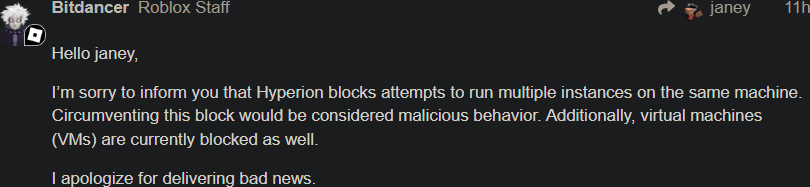
A: A Byfron developer stated that using multiple clients may be considered malicious behavior, so multi-Roblox is disabled by default and must be enabled manually at your own risk.
A: Download the x86 Visual C++ Redistributable from https://docs.microsoft.com/en-US/cpp/windows/latest-supported-vc-redist. On an older OS, try older vcredist versions. If that still doesn't work, install the latest .NET Framework from https://dotnet.microsoft.com/download/dotnet-framework.
A: The dot indicates an account hasn't been used in over 20 days; the dot turns more red as more days pass. Join a game with that account, or enable developer mode and click Get Authentication Ticket when right-clicking an account (works with multiple accounts at once).
A: Download RAMDecrypt and follow its instructions, then save the fully decrypted file wherever you like (Google Drive, flash drive, etc.). This does NOT work on files that originated from a different PC.
A: Add an exclusion for the Roblox Account Manager folder. Here is a video guide on how to add an exclusion: https://youtu.be/1r93NtwZt4o
A: Yes. Make sure the Place ID matches the game you want to join, then paste the full VIP server link into the Job ID box and press Join Server.
A: This program is not malicious. Its source code is fully available and trusted by many people in the community. Some anti-virus programs flag it because of features like auto-update (a similar false positive happens with Roblox Studio Mod Manager).
A: No. There is no macOS compatibility at this time. This may change in the future.
A: Feature ideas and requests are welcome — open an issue in the Issues section.
A: Open an issue in the Issues section. Include screenshots if possible and a detailed description of the problem. Click Open Details before screenshotting. Please make sure your output is in English.
A: This is due to Roblox's rate limiting.
A: Restart the program.
A: Using this does not break Roblox's Terms of Service. However, some games may disallow alt accounts, so check the game rules if you are unsure.
A: This is caused by ProtectedData failing occasionally. You can disable encryption by creating a file called NoEncryption.IUnderstandTheRisks.iautamor in the application folder. Do this at your own risk — you are solely responsible for your accounts.
| Feature | Description | How to |
|---|---|---|
| Account Encryption | All account data is locally encrypted using your computer as the password/key. If someone gets hold of your AccountData.json, they cannot decrypt it without your machine. |
DO NOT SHARE YOUR AccountData.json FILE |
| Password Encryption | Use a password to encrypt your data | Recommended when storing data in cloud services; also prevents corruption when switching computers |
| Multi Roblox | [DISABLED BY DEFAULT, READ FAQ] Built-in support for running multiple Roblox clients simultaneously | Make sure no Roblox processes are running in the background, then enable in Settings |
| Load Region | See where a server is located and get an accurate ping reading | Right-click a server in the Server List, then click Load Region (requires a valid account to be selected) |
| Server List | See a game's servers including player count and ping | Click Server List on the right side of the main window |
| Join Small Servers | Join small servers in games that use lobby starter places | Insert the actual game's PlaceId next to Refresh in Server List, click Refresh, right-click a server, and click Join Game |
| Account Utilities | Change account password, email, follow privacy, etc. | Click Account Utilities in the main window (requires a valid account selected) |
| Account Sorting | Sort accounts by drag-and-drop | Drag and drop an account on the list |
| Account Grouping | Sort accounts by groups; drag and drop between groups | Right-click an account → Groups → Move account to |
| Group Sorting | Sort groups by assigning numbers 0–999 | Prefix a group name with a number (e.g. 1Main, 007 Bank); numbers are hidden after creation |
| Games List | Browse thousands of games outside the front page | Click Server List → Games |
| Favorite Games | Save frequently visited games | Click Server List → Favorites |
| Recent Games | Quickly return to recently played games | After joining, the game is saved to the recent games list accessible from the clock icon above the PlaceId box |
| Open Browser | Open a logged-in browser window for the selected account | Click Open Browser with an account selected |
| Join VIP Servers | Join private VIP servers | Paste the full VIP server link into the PlaceId text box |
| Shuffle JobId | Pick a random server on every join unless a specific JobId is set | Click the shuffle icon to toggle |
| Save PlaceId & JobId | Save PlaceId and/or JobId per account | Enter the desired values, then click the Save icon next to the JobId text box |
| Player Finder | Find a player even if their follows are off, as long as you know their game | In Server List, type a username into Username and click Search |
| Universe Viewer | View a game's universe | Open Utilities → Universe |
| Outfit Viewer | View and wear other players' outfits | Open Utilities → Outfits |
| Sort by Usage Date | See the last time each account was used | Enable headers in the Theme Editor, right-click the header → enable Last Used, then click the column to sort |
| Close Roblox Beta | Automatically terminates the Roblox Beta Home Menu process | Open Utilities → Watcher |
| Prevent Duplicate Instances | Shuts down old instances of an account before launching a new one | Automatic — each account is assigned a BrowserTrackerID |
| Save Passwords | Saves account passwords automatically; copy with right-click → Copy Password |
Disable in Settings → uncheck Save Passwords |
| Themes | Customize the UI colors and style | Click Edit Theme in the main window |
| Developer Mode | Unlock hidden features | Settings → Developer → check Enable Developer Mode |
| Local Web API | Control RAM features via HTTP requests | Enable in Settings; see Developer API section above |
| Account Control | Control in-game accounts via the Account Control window | Click Account Control in the main window |
| Import Cookies | Import accounts via .ROBLOSECURITY cookies |
Drag and drop cookies into the program, or use the Import window in Developer Mode |
| FPS Unlocker | Unlocks the Roblox client FPS via ClientAppSettings.json |
Settings → Miscellaneous |
| Bulk User Importing | Import accounts by username/password combos or cookies | Click the arrow next to Add Account → select user:pass or cookies |
| Automatic Connection Loss Detection | Closes instances not connected to a server for too long | Utilities → Watcher → enable Enable Roblox Watcher and Exit if No Connection to Server |
| Automatic Cookie Refresh | Keeps cookies from expiring while the manager is in use | Active automatically when account manager is open |
| Join Group | Join Roblox groups with multiple accounts at once | Click the arrow next to Open Browser → Join Group |
| Auto Relaunch | Automatically relaunches accounts that are AFK-kicked or not in a game | Click Account Control → Settings → enable Use Presence API (if no Nexus executor is available) |
| Quick Log In | Log in to an account on another computer via Roblox's Quick Log In feature | Right-click an account → Quick Log In |
| AI Captcha Assistance | Helps solve "Pick the image" captchas using the Nopecha API | Enable in Settings; a subscription key is required |


