Welcome to OpenStack Icehouse installation manual !
This document is based on the OpenStack Official Documentation for Icehouse.
| Version: | 1.0 |
|---|---|
| Authors: | Chaima Ghribi and Marouen Mechtri |
| License: | Apache License Version 2.0 |
| Keywords: | OpenStack, Icehouse, Heat, Neutron, Nova, Ubuntu 14.04, Glance, Horizon |
Authors:
Copyright (C) Chaima Ghribi
Copyright (C) Marouen Mechtri
In this installation guide, we cover the step-by-step process of installing Openstack Icehouse on Ubuntu 14.04. We consider a multi-node architecture with Openstack Networking (Neutron) that requires three node types:
- Controller Node that runs management services (keystone, Horizon…) needed for OpenStack to function.
- Network Node that runs networking services and is responsible for virtual network provisioning and for connecting virtual machines to external networks.
- Compute Node that runs the virtual machine instances in OpenStack.
We have deployed a single compute node (see the Figure below) but you can simply add more compute nodes to our multi-node installation, if needed.
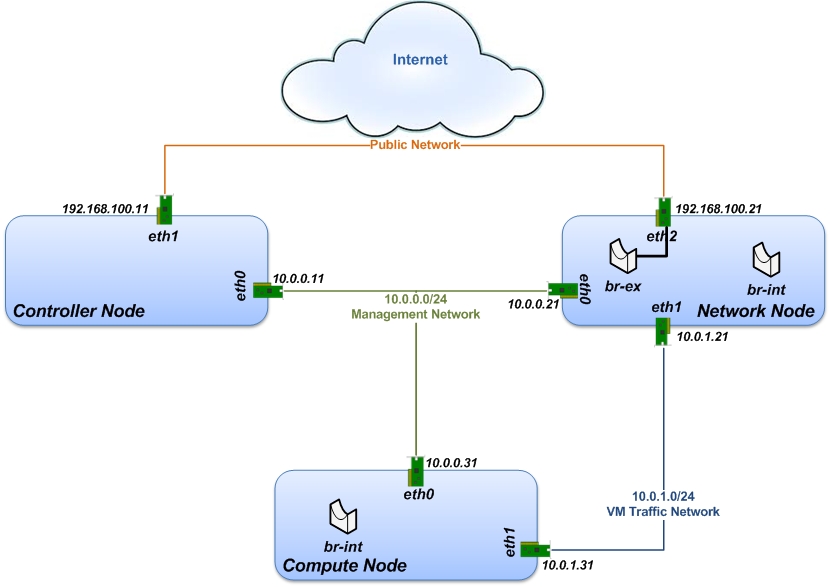
For OpenStack Multi-Node setup you need to create three networks:
- Management Network (10.0.0.0/24): A network segment used for administration, not accessible to the public Internet.
- VM Traffic Network (10.0.1.0/24): This network is used as internal network for traffic between virtual machines in OpenStack, and between the virtual machines and the network nodes that provide L3 routes out to the public network.
- Public Network (192.168.100.0/24): This network is connected to the controller nodes so users can access the OpenStack interfaces, and connected to the network nodes to provide VMs with publicly routable traffic functionality.
In the next subsections, we describe in details how to set up, configure and test the network architecture. We want to make sure everything is ok before install ;)
So, let’s prepare the nodes for OpenStack installation!
The controller node has two Network Interfaces: eth0 is internal (used for connectivity for OpenStack nodes) and eth1 is external.
Change to super user mode:
sudo su
Set the hostname:
vi /etc/hostname
controller
Edit /etc/hosts:
vi /etc/hosts

#controller
10.0.0.11       controller

#network
10.0.0.21       network

# compute1
10.0.0.31       compute1
Edit network settings to configure the interfaces eth0 and eth1:
vi /etc/network/interfaces

# The management network interface
  auto eth0
  iface eth0 inet static
  address 10.0.0.11
  netmask 255.255.255.0

# The public network interface
  auto eth1
  iface eth1 inet static
  address 192.168.100.11
  netmask 255.255.255.0
  gateway 192.168.100.1
  dns-nameservers 8.8.8.8
Restart network:
ifdown eth0 && ifup eth0

ifdown eth1 && ifup eth1
The network node has three network Interfaces: eth0 for management use: eth1 for connectivity between VMs and eth2 for external connectivity.
Change to super user mode:
sudo su
Set the hostname:
vi /etc/hostname
network
Edit /etc/hosts:
vi /etc/hosts

#network
10.0.0.21       network

#controller
10.0.0.11       controller

# compute1
10.0.0.31       compute1
Edit network settings to configure the interfaces eth0, eth1 and eth2:
vi /etc/network/interfaces

# The management network interface
  auto eth0
  iface eth0 inet static
  address 10.0.0.21
  netmask 255.255.255.0

# VM traffic interface
  auto eth1
  iface eth1 inet static
  address 10.0.1.21
  netmask 255.255.255.0

# The public network interface
  auto eth2
  iface eth2 inet static
  address 192.168.100.21
  netmask 255.255.255.0
  gateway 192.168.100.1
  dns-nameservers 8.8.8.8
Restart network:
ifdown eth0 && ifup eth0

ifdown eth1 && ifup eth1

ifdown eth2 && ifup eth2
The network node has two network Interfaces: eth0 for management use and eth1 for connectivity between VMs.
Change to super user mode:
sudo su
Set the hostname:
vi /etc/hostname
compute1
Edit /etc/hosts:
vi /etc/hosts

# compute1
10.0.0.31       compute1

#controller
10.0.0.11       controller

#network
10.0.0.21       network
Edit network settings to configure the interfaces eth0 and eth1:
vi /etc/network/interfaces

# The management network interface
  auto eth0
  iface eth0 inet static
  address 10.0.0.31
  netmask 255.255.255.0

# VM traffic interface
  auto eth1
  iface eth1 inet static
  address 10.0.1.31
  netmask 255.255.255.0
Restart network:
ifdown eth0 && ifup eth0

ifdown eth1 && ifup eth1
We recommend that you verify network connectivity to the internet and among the nodes before proceeding further.
From the controller node:
# ping a site on the internet:
ping openstack.org

# ping the management interface on the network node:
ping network

# ping the management interface on the compute node:
ping compute1
From the network node:
# ping a site on the internet:
ping openstack.org

# ping the management interface on the controller node:
ping controller

# ping the VM traffic interface on the compute node:
ping 10.0.1.31
From the compute node:
# ping a site on the internet:
ping openstack.org

# ping the management interface on the controller node:
ping controller

# ping the VM traffic interface on the network node:
ping 10.0.1.21
Now everything is ok :) So let's go ahead and install it !
Let's start with the controller ! the cornerstone !
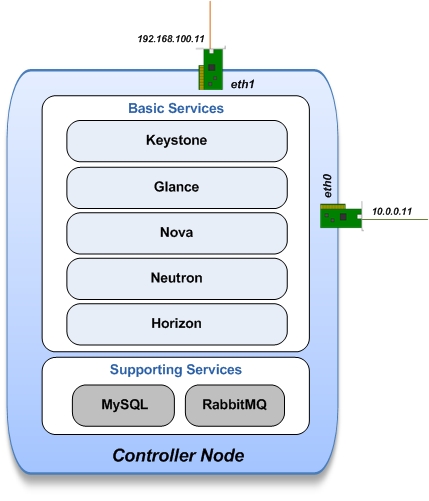
Here we've installed the basic services (keystone, glance, nova,neutron and horizon) and also the supporting services such as MySql database, message broker (RabbitMQ), and NTP.
An additional install guide for optional services (Heat, Cinder...) will be provided in the near future ;)
Update and Upgrade your System:
apt-get update -y && apt-get upgrade -y && apt-get dist-upgrade
Install NTP service (Network Time Protocol):
apt-get install -y ntp
Install MySQL:
apt-get install -y mysql-server python-mysqldb
Set the bind-address key to the management IP address of the controller node:
vi /etc/mysql/my.cnf
bind-address = 10.0.0.11
Under the [mysqld] section, set the following keys to enable InnoDB, UTF-8 character set, and UTF-8 collation by default:
vi /etc/mysql/my.cnf
[mysqld]
default-storage-engine = innodb
innodb_file_per_table
collation-server = utf8_general_ci
init-connect = 'SET NAMES utf8'
character-set-server = utf8
Restart the MySQL service:
service mysql restart
Delete the anonymous users that are created when the database is first started:
mysql_install_db
mysql_secure_installation
Install RabbitMQ (Message Queue):
apt-get install -y rabbitmq-server
Install keystone packages:
apt-get install -y keystone
Create a MySQL database for keystone:
mysql -u root -p

CREATE DATABASE keystone;
GRANT ALL PRIVILEGES ON keystone.* TO 'keystone'@'localhost' IDENTIFIED BY 'KEYSTONE_DBPASS';
GRANT ALL PRIVILEGES ON keystone.* TO 'keystone'@'%' IDENTIFIED BY 'KEYSTONE_DBPASS';

exit;
Remove Keystone SQLite database:
rm /var/lib/keystone/keystone.db
Edit /etc/keystone/keystone.conf:
 vi /etc/keystone/keystone.conf

[database]
replace connection = sqlite:////var/lib/keystone/keystone.db by
connection = mysql://keystone:KEYSTONE_DBPASS@controller/keystone

[DEFAULT]
admin_token=ADMIN
log_dir=/var/log/keystone
Restart the identity service then synchronize the database:
service keystone restart
keystone-manage db_sync
Check synchronization:
mysql -u root -p keystone
show TABLES;
Define users, tenants, and roles:
export OS_SERVICE_TOKEN=ADMIN
export OS_SERVICE_ENDPOINT=http://controller:35357/v2.0

#Create an administrative user
keystone user-create --name=admin --pass=admin_pass --email=admin@domain.com
keystone role-create --name=admin
keystone tenant-create --name=admin --description="Admin Tenant"
keystone user-role-add --user=admin --tenant=admin --role=admin
keystone user-role-add --user=admin --role=_member_ --tenant=admin

#Create a normal user
keystone user-create --name=demo --pass=demo_pass --email=demo@domain.com
keystone tenant-create --name=demo --description="Demo Tenant"
keystone user-role-add --user=demo --role=_member_ --tenant=demo

#Create a service tenant
keystone tenant-create --name=service --description="Service Tenant"
Define services and API endpoints:
keystone service-create --name=keystone --type=identity --description="OpenStack Identity"

keystone endpoint-create \
--service-id=$(keystone service-list | awk '/ identity / {print $2}') \
--publicurl=http://192.168.100.11:5000/v2.0 \
--internalurl=http://controller:5000/v2.0 \
--adminurl=http://controller:35357/v2.0
Create a simple credential file:
vi creds
#Paste the following:
export OS_TENANT_NAME=admin
export OS_USERNAME=admin
export OS_PASSWORD=admin_pass
export OS_AUTH_URL="http://192.168.100.11:5000/v2.0/"

vi admin_creds
#Paste the following:
export OS_USERNAME=admin
export OS_PASSWORD=admin_pass
export OS_TENANT_NAME=admin
export OS_AUTH_URL=http://controller:35357/v2.0
Test Keystone:
#clear the values in the OS_SERVICE_TOKEN and OS_SERVICE_ENDPOINT environment variables
 unset OS_SERVICE_TOKEN OS_SERVICE_ENDPOINT

#Request a authentication token
keystone --os-username=admin --os-password=admin_pass --os-auth-url=http://controller:35357/v2.0 token-get

# Load credential admin file
source admin_creds

keystone token-get

# Load credential file:
source creds

keystone user-list
keystone user-role-list --user admin --tenant admin
Install Glance packages:
apt-get install -y glance python-glanceclient
Create a MySQL database for Glance:
mysql -u root -p

CREATE DATABASE glance;
GRANT ALL PRIVILEGES ON glance.* TO 'glance'@'localhost' IDENTIFIED BY 'GLANCE_DBPASS';
GRANT ALL PRIVILEGES ON glance.* TO 'glance'@'%' IDENTIFIED BY 'GLANCE_DBPASS';

exit;
Configure service user and role:
keystone user-create --name=glance --pass=service_pass --email=glance@domain.com
keystone user-role-add --user=glance --tenant=service --role=admin
Register the service and create the endpoint:
keystone service-create --name=glance --type=image --description="OpenStack Image Service"
keystone endpoint-create \
--service-id=$(keystone service-list | awk '/ image / {print $2}') \
--publicurl=http://192.168.100.11:9292 \
--internalurl=http://controller:9292 \
--adminurl=http://controller:9292
Update /etc/glance/glance-api.conf:
vi /etc/glance/glance-api.conf

[database]
replace sqlite_db = /var/lib/glance/glance.sqlite with
connection = mysql://glance:GLANCE_DBPASS@controller/glance

[DEFAULT]
rpc_backend = rabbit
rabbit_host = controller

[keystone_authtoken]
auth_uri = http://controller:5000
auth_host = controller
auth_port = 35357
auth_protocol = http
admin_tenant_name = service
admin_user = glance
admin_password = service_pass

[paste_deploy]
flavor = keystone
Update /etc/glance/glance-registry.conf:
vi /etc/glance/glance-registry.conf

[database]
replace sqlite_db = /var/lib/glance/glance.sqlite with:
connection = mysql://glance:GLANCE_DBPASS@controller/glance

[keystone_authtoken]
auth_uri = http://controller:5000
auth_host = controller
auth_port = 35357
auth_protocol = http
admin_tenant_name = service
admin_user = glance
admin_password = service_pass

[paste_deploy]
flavor = keystone
Restart the glance-api and glance-registry services:
service glance-api restart; service glance-registry restart
Synchronize the glance database:
glance-manage db_sync
Test Glance, upload the cirros cloud image:
source creds
glance image-create --name "cirros-0.3.2-x86_64" --is-public true \
--container-format bare --disk-format qcow2 \
--location http://cdn.download.cirros-cloud.net/0.3.2/cirros-0.3.2-x86_64-disk.img
List Images:
glance image-list
Install nova packages:
apt-get install -y nova-api nova-cert nova-conductor nova-consoleauth \
nova-novncproxy nova-scheduler python-novaclient
Create a Mysql database for Nova:
mysql -u root -p

CREATE DATABASE nova;
GRANT ALL PRIVILEGES ON nova.* TO 'nova'@'localhost' IDENTIFIED BY 'NOVA_DBPASS';
GRANT ALL PRIVILEGES ON nova.* TO 'nova'@'%' IDENTIFIED BY 'NOVA_DBPASS';

exit;
Configure service user and role:
keystone user-create --name=nova --pass=service_pass --email=nova@domain.com
keystone user-role-add --user=nova --tenant=service --role=admin
Register the service and create the endpoint:
keystone service-create --name=nova --type=compute --description="OpenStack Compute"
keystone endpoint-create \
--service-id=$(keystone service-list | awk '/ compute / {print $2}') \
--publicurl=http://192.168.100.11:8774/v2/%\(tenant_id\)s \
--internalurl=http://controller:8774/v2/%\(tenant_id\)s \
--adminurl=http://controller:8774/v2/%\(tenant_id\)s
Edit the /etc/nova/nova.conf:
vi /etc/nova/nova.conf

[database]
connection = mysql://nova:NOVA_DBPASS@controller/nova

[DEFAULT]
rpc_backend = rabbit
rabbit_host = controller
my_ip = 10.0.0.11
vncserver_listen = 10.0.0.11
vncserver_proxyclient_address = 10.0.0.11
auth_strategy = keystone

[keystone_authtoken]
auth_uri = http://controller:5000
auth_host = controller
auth_port = 35357
auth_protocol = http
admin_tenant_name = service
admin_user = nova
admin_password = service_pass
Remove Nova SQLite database:
rm /var/lib/nova/nova.sqlite
Synchronize your database:
nova-manage db sync
Restart nova-* services:
service nova-api restart
service nova-cert restart
service nova-conductor restart
service nova-consoleauth restart
service nova-novncproxy restart
service nova-scheduler restart
Check Nova is running. The :-) icons indicate that everything is ok !:
nova-manage service list
To verify your configuration, list available images:
source creds
nova image-list
Install the Neutron server and the OpenVSwitch packages:
apt-get install -y neutron-server neutron-plugin-ml2
Create a MySql database for Neutron:
mysql -u root -p

CREATE DATABASE neutron;
GRANT ALL PRIVILEGES ON neutron.* TO neutron@'localhost' IDENTIFIED BY 'NEUTRON_DBPASS';
GRANT ALL PRIVILEGES ON neutron.* TO neutron@'%' IDENTIFIED BY 'NEUTRON_DBPASS';

exit;
Configure service user and role:
keystone user-create --name=neutron --pass=service_pass --email=neutron@domain.com
keystone user-role-add --user=neutron --tenant=service --role=admin
Register the service and create the endpoint:
keystone service-create --name=neutron --type=network --description="OpenStack Networking"

keystone endpoint-create \
--service-id=$(keystone service-list | awk '/ network / {print $2}') \
--publicurl=http://192.168.100.11:9696 \
--internalurl=http://controller:9696 \
--adminurl=http://controller:9696
Update /etc/neutron/neutron.conf:
vi /etc/neutron/neutron.conf

[database]
replace connection = sqlite:////var/lib/neutron/neutron.sqlite with
connection = mysql://neutron:NEUTRON_DBPASS@controller/neutron

[DEFAULT]
replace  core_plugin = neutron.plugins.ml2.plugin.Ml2Plugin with
core_plugin = ml2
service_plugins = router
allow_overlapping_ips = True

auth_strategy = keystone
rpc_backend = neutron.openstack.common.rpc.impl_kombu
rabbit_host = controller

notify_nova_on_port_status_changes = True
notify_nova_on_port_data_changes = True
nova_url = http://controller:8774/v2
nova_admin_username = nova
# Replace the SERVICE_TENANT_ID with the output of this command (keystone tenant-list | awk '/ service / { print $2 }')
nova_admin_tenant_id = SERVICE_TENANT_ID
nova_admin_password = service_pass
nova_admin_auth_url = http://controller:35357/v2.0

[keystone_authtoken]
auth_uri = http://controller:5000
auth_host = controller
auth_port = 35357
auth_protocol = http
admin_tenant_name = service
admin_user = neutron
admin_password = service_pass
Configure the Modular Layer 2 (ML2) plug-in:
vi /etc/neutron/plugins/ml2/ml2_conf.ini

[ml2]
type_drivers = gre
tenant_network_types = gre
mechanism_drivers = openvswitch

[ml2_type_gre]
tunnel_id_ranges = 1:1000

[securitygroup]
firewall_driver = neutron.agent.linux.iptables_firewall.OVSHybridIptablesFirewallDriver
enable_security_group = True
Configure Compute to use Networking:
add in /etc/nova/nova.conf

vi /etc/nova/nova.conf

[DEFAULT]
network_api_class=nova.network.neutronv2.api.API
neutron_url=http://controller:9696
neutron_auth_strategy=keystone
neutron_admin_tenant_name=service
neutron_admin_username=neutron
neutron_admin_password=service_pass
neutron_admin_auth_url=http://controller:35357/v2.0
libvirt_vif_driver=nova.virt.libvirt.vif.LibvirtHybridOVSBridgeDriver
linuxnet_interface_driver=nova.network.linux_net.LinuxOVSInterfaceDriver
firewall_driver=nova.virt.firewall.NoopFirewallDriver
security_group_api=neutron
Restart the Compute services:
service nova-api restart
service nova-scheduler restart
service nova-conductor restart
Restart the Networking service:
service neutron-server restart
Install the required packages:
apt-get install -y apache2 memcached libapache2-mod-wsgi openstack-dashboard
You can remove the openstack-dashboard-ubuntu-theme package:
apt-get remove -y --purge openstack-dashboard-ubuntu-theme
Edit /etc/openstack-dashboard/local_settings.py:
vi /etc/openstack-dashboard/local_settings.py
ALLOWED_HOSTS = ['localhost', '192.168.100.11']
OPENSTACK_HOST = "controller"
Reload Apache and memcached:
service apache2 restart; service memcached restart
Note:
If you have this error: apache2: Could not reliably determine the server's fully qualified domain name, using 127.0.1.1.
Set the 'ServerName' directive  globally to suppress this message”

Solution: Edit /etc/apache2/apache2.conf

vi /etc/apache2/apache2.conf
Add the following new line end of file:
ServerName localhost
Reload Apache and memcached:
service apache2 restart; service memcached restart
Check OpenStack Dashboard at http://192.168.100.11/horizon. login admin/admin_pass
Now, let's move to second step!
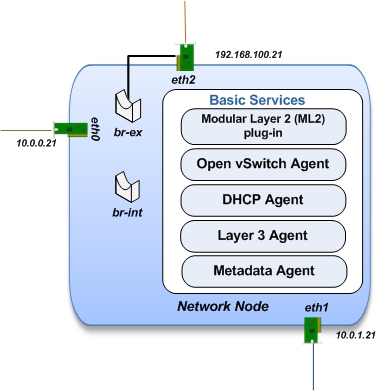
The network node runs the Networking plug-in and different agents (see the Figure below).
Update and Upgrade your System:
apt-get update -y && apt-get upgrade -y && apt-get dist-upgrade
Install NTP service:
apt-get install -y ntp
Set your network node to follow up your conroller node:
sed -i 's/server ntp.ubuntu.com/server controller/g' /etc/ntp.conf
Restart NTP service:
service ntp restart
Install other services:
apt-get install -y vlan bridge-utils
Edit /etc/sysctl.conf to contain the following:
vi /etc/sysctl.conf
net.ipv4.ip_forward=1
net.ipv4.conf.all.rp_filter=0
net.ipv4.conf.default.rp_filter=0
Implement the changes:
sysctl -p
Install the Networking components:
apt-get install -y neutron-plugin-ml2 neutron-plugin-openvswitch-agent dnsmasq neutron-l3-agent neutron-dhcp-agent
Update /etc/neutron/neutron.conf:
vi /etc/neutron/neutron.conf

[DEFAULT]
auth_strategy = keystone
rpc_backend = neutron.openstack.common.rpc.impl_kombu
rabbit_host = controller
replace  core_plugin = neutron.plugins.ml2.plugin.Ml2Plugin with
core_plugin = ml2
service_plugins = router
allow_overlapping_ips = True

[keystone_authtoken]
auth_uri = http://controller:5000
auth_host = controller
auth_port = 35357
auth_protocol = http
admin_tenant_name = service
admin_user = neutron
admin_password = service_pass
Edit the /etc/neutron/l3_agent.ini:
vi /etc/neutron/l3_agent.ini

[DEFAULT]
interface_driver = neutron.agent.linux.interface.OVSInterfaceDriver
use_namespaces = True
Edit the /etc/neutron/dhcp_agent.ini:
vi /etc/neutron/dhcp_agent.ini

[DEFAULT]
interface_driver = neutron.agent.linux.interface.OVSInterfaceDriver
dhcp_driver = neutron.agent.linux.dhcp.Dnsmasq
use_namespaces = True
Edit the /etc/neutron/metadata_agent.ini:
vi /etc/neutron/metadata_agent.ini

[DEFAULT]
auth_url = http://controller:5000/v2.0
auth_region = regionOne

admin_tenant_name = service
admin_user = neutron
admin_password = service_pass
nova_metadata_ip = controller
metadata_proxy_shared_secret = helloOpenStack
Note: On the controller node:
edit the /etc/nova/nova.conf file

vi /etc/nova/nova.conf

[DEFAULT]
service_neutron_metadata_proxy = true
neutron_metadata_proxy_shared_secret = helloOpenStack

service nova-api restart
Edit the /etc/neutron/plugins/ml2/ml2_conf.ini:
vi /etc/neutron/plugins/ml2/ml2_conf.ini

[ml2]
type_drivers = gre
tenant_network_types = gre
mechanism_drivers = openvswitch

[ml2_type_gre]
tunnel_id_ranges = 1:1000

[ovs]
local_ip = 10.0.1.21
tunnel_type = gre
enable_tunneling = True

[securitygroup]
firewall_driver = neutron.agent.linux.iptables_firewall.OVSHybridIptablesFirewallDriver
enable_security_group = True
Restart openVSwitch:
service openvswitch-switch restart
Create the bridges:
#br-int will be used for VM integration
ovs-vsctl add-br br-int

#br-ex is used to make to VM accessible from the internet
ovs-vsctl add-br br-ex
Add the eth2 to the br-ex:
#Internet connectivity will be lost after this step but this won't affect OpenStack's work
ovs-vsctl add-port br-ex eth2
Edit /etc/network/interfaces:
vi /etc/network/interfaces

# The public network interface
auto eth2
iface eth2 inet manual
up ifconfig $IFACE 0.0.0.0 up
up ip link set $IFACE promisc on
down ip link set $IFACE promisc off
down ifconfig $IFACE down

auto br-ex
iface br-ex inet static
address 192.168.100.21
netmask 255.255.255.0
gateway 192.168.100.1
dns-nameservers 8.8.8.8
Restart network:
ifdown eth2 && ifup eth2

ifdown br-ex && ifup br-ex
Restart all neutron services:
service neutron-plugin-openvswitch-agent restart
service neutron-dhcp-agent restart
service neutron-l3-agent restart
service neutron-metadata-agent restart
service dnsmasq restart
Check status:
service neutron-plugin-openvswitch-agent status
service neutron-dhcp-agent status
service neutron-l3-agent status
service neutron-metadata-agent status
service dnsmasq status
Create a simple credential file:
vi creds
#Paste the following:
export OS_TENANT_NAME=admin
export OS_USERNAME=admin
export OS_PASSWORD=admin_pass
export OS_AUTH_URL="http://192.168.100.11:5000/v2.0/"
Check Neutron agents:
source creds
neutron agent-list
Finally, let's install the services on the compute node!
It uses KVM as hypervisor and runs nova-compute, the Networking plug-in and layer 2 agent.

Update and Upgrade your System:
apt-get update -y && apt-get upgrade -y && apt-get dist-upgrade
Install ntp service:
apt-get install -y ntp
Set the compute node to follow up your conroller node:
sed -i 's/server ntp.ubuntu.com/server controller/g' /etc/ntp.conf
Restart NTP service:
service ntp restart
Check that your hardware supports virtualization:
apt-get install -y cpu-checker
kvm-ok
Install and configure kvm:
apt-get install -y kvm libvirt-bin pm-utils
Install the Compute packages:
apt-get install -y nova-compute-kvm python-guestfs
Make the current kernel readable:
dpkg-statoverride --update --add root root 0644 /boot/vmlinuz-$(uname -r)
Enable this override for all future kernel updates, create the file /etc/kernel/postinst.d/statoverride containing:
vi /etc/kernel/postinst.d/statoverride
#!/bin/sh
version="$1"
# passing the kernel version is required
[ -z "${version}" ] && exit 0
dpkg-statoverride --update --add root root 0644 /boot/vmlinuz-${version}
Make the file executable:
chmod +x /etc/kernel/postinst.d/statoverride
Modify the /etc/nova/nova.conf like this:
vi /etc/nova/nova.conf
[DEFAULT]
auth_strategy = keystone
rpc_backend = rabbit
rabbit_host = controller
my_ip = 10.0.0.31
vnc_enabled = True
vncserver_listen = 0.0.0.0
vncserver_proxyclient_address = 10.0.0.31
novncproxy_base_url = http://192.168.100.11:6080/vnc_auto.html
glance_host = controller
vif_plugging_is_fatal=false
vif_plugging_timeout=0

[database]
connection = mysql://nova:NOVA_DBPASS@controller/nova

[keystone_authtoken]
auth_uri = http://controller:5000
auth_host = controller
auth_port = 35357
auth_protocol = http
admin_tenant_name = service
admin_user = nova
admin_password = service_pass
Delete /var/lib/nova/nova.sqlite file:
rm /var/lib/nova/nova.sqlite
Restart nova-compute services:
service nova-compute restart
Edit /etc/sysctl.conf to contain the following:
vi /etc/sysctl.conf
net.ipv4.ip_forward=1
net.ipv4.conf.all.rp_filter=0
net.ipv4.conf.default.rp_filter=0
Implement the changes:
sysctl -p
Install the Networking components:
apt-get install -y neutron-common neutron-plugin-ml2 neutron-plugin-openvswitch-agent
Update /etc/neutron/neutron.conf:
vi /etc/neutron/neutron.conf

[DEFAULT]
auth_strategy = keystone
replace  core_plugin = neutron.plugins.ml2.plugin.Ml2Plugin with
core_plugin = ml2
service_plugins = router
allow_overlapping_ips = True

rpc_backend = neutron.openstack.common.rpc.impl_kombu
rabbit_host = controller

[keystone_authtoken]
auth_uri = http://controller:5000
auth_host = controller
auth_port = 35357
auth_protocol = http
admin_tenant_name = service
admin_user = neutron
admin_password = service_pass
Configure the Modular Layer 2 (ML2) plug-in:
vi /etc/neutron/plugins/ml2/ml2_conf.ini

[ml2]
type_drivers = gre
tenant_network_types = gre
mechanism_drivers = openvswitch

[ml2_type_gre]
tunnel_id_ranges = 1:1000

[ovs]
local_ip = 10.0.1.31
tunnel_type = gre
enable_tunneling = True

[securitygroup]
firewall_driver = neutron.agent.linux.iptables_firewall.OVSHybridIptablesFirewallDriver
enable_security_group = True
Restart the OVS service:
service openvswitch-switch restart
Create the bridges:
#br-int will be used for VM integration
ovs-vsctl add-br br-int
Edit /etc/nova/nova.conf:
vi /etc/nova/nova.conf

[DEFAULT]
network_api_class = nova.network.neutronv2.api.API
neutron_url = http://controller:9696
neutron_auth_strategy = keystone
neutron_admin_tenant_name = service
neutron_admin_username = neutron
neutron_admin_password = service_pass
neutron_admin_auth_url = http://controller:35357/v2.0
linuxnet_interface_driver = nova.network.linux_net.LinuxOVSInterfaceDriver
firewall_driver = nova.virt.firewall.NoopFirewallDriver
security_group_api = neutron
Edit /etc/nova/nova-compute.conf with the correct hypervisor type (set to qemu if using virtualbox for example, kvm is default)
vi /etc/nova/nova-compute.conf

[DEFAULT]
compute_driver=libvirt.LibvirtDriver
[libvirt]
virt_type=qemu
Restart nova-compute services:
service nova-compute restart
Restart the Open vSwitch (OVS) agent:
service neutron-plugin-openvswitch-agent restart
Check Nova is running. The :-) icons indicate that everything is ok !:
nova-manage service list
That's it !! ;) Just try it!
If you want to create your first instance with Neutron, follow the instructions in our VM creation guide available here Create-First-Instance-with-Neutron.
Your contributions are welcome, as are questions and requests for help :)
Hope this manual will be helpful and simple!
A special wink at all the interesting works on the previous versions of OpenStack ;) especially:
Institut Mines Télécom - Télécom SudParis
Copyright (C) 2014 Authors
Original Authors - Chaima Ghribi and Marouen Mechtri
Licensed under the Apache License, Version 2.0 (the "License"); you may not use this file except
in compliance with the License. You may obtain a copy of the License at:
http://www.apache.org/licenses/LICENSE-2.0

Unless required by applicable law or agreed to in writing, software
distributed under the License is distributed on an "AS IS" BASIS,
WITHOUT WARRANTIES OR CONDITIONS OF ANY KIND, either express or implied.
See the License for the specific language governing permissions and
limitations under the License.
Chaima Ghribi: chaima.ghribi@it-sudparis.eu
Marouen Mechtri : marouen.mechtri@it-sudparis.eu