
When starting to write your Plug-In's source code, the first thing to do is to create the file structure. You should do it as follows:
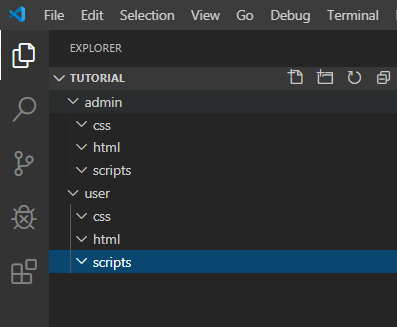
admin and user are the two main folders - both containing the same set of subfolders html, css and scripts.
The source files will reside in those subfolders as shown below:
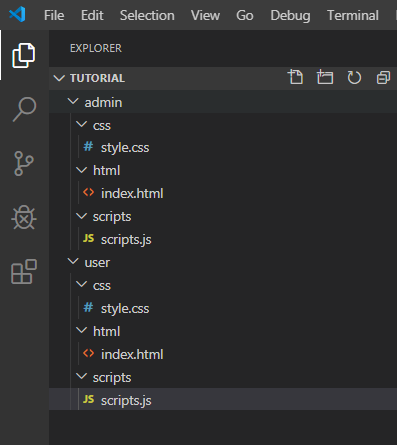
Each scripts subfolder can only have one script named scripts.js. They will run on every page of the marketplace. For example, if the admin folder contains a script called scripts.js, then all pages on the Admin Portal will execute the script. The same logic applies for the user folder - the script will execute on all buyer and merchant pages.
That is why knowing how to choose where your script runs is important.
Any other scripts named differently will have to be added as a <script src="" ></script> tag in the html pages for them to be executed.
If you have an index.html in the admin folder, it will be loaded right after installing the plug-in, and will be accessible via the Plug-Ins link on the sidebar of the Admin Portal. If you want any script to run on it, you will have to add the script tags <script src="" ></script>.
You can see examples of the above explanation in our Plug-In Sample Code Repository.
If you have an index.html in the user folder, then you will be able to do the following:
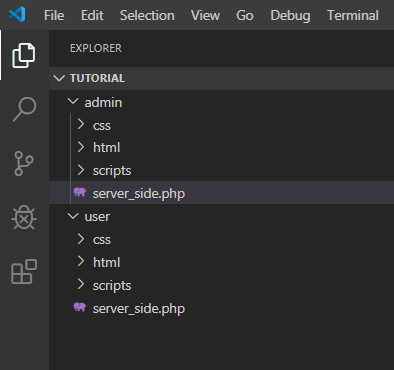
If you prefer coding in PHP, you can still do that by saving your PHP files in the main folders instead of the subfolders, as shown below:
Please note:
- If you want buyers and merchants to be affected by the PHP files, then the PHP files should be in the
userfolder. - If you want the admin to be affected by the PHP files, then the PHP files should be in the
adminfolder.
An example of a Plug-In Sample Code that uses PHP is the Discount Coupon Generator.
Very Important
Two PHP files are automatically generated when the source code is uploaded on the Developer Dashboard:
- admin_token.php - When automatically generated,
$client_idand$client_secretwill be assigned their correct values for your marketplace automatically. - callAPI.php
Instructions on how to compress and upload to the developer dashboard is explained here.